Help opens at the section for your current page. Search or browse any chapter. Your application stays open beside this manual; opening Help does not save or reset your work.
Chapter 01
Getting started
The Box 55 application brings incident reporting, vehicle inspections, scheduling, membership forms, safety reporting, and responder information into one website. This manual explains the controls and workflows available in web release 2026.10.16-160. Open https://box55forms.online to begin.
Who this manual is for: drivers and members submitting information; officers preparing schedules; administrators managing records and members; and developers maintaining protected settings. Screenshots show the current interface with illustrative names and entries. Those entries are not organization records.
The shared header gives access to each application area. Sign-in controls appear at the upper right. Select image to enlarge.
Find your task
Task
Where to go
Record a response or training activity
Incident RunSheet → New Run
Document a vehicle handoff or condition
Shift Change Inspection → New Inspection
Read the published duty calendar
Schedule → Schedule
Submit times you can drive
Schedule → My Availability
Prepare and publish assignments
Schedule → Officer Workspace
Send a pre-trip alert
Pre Trip → New Notification
Complete a waiver or membership paperwork
Ride Along Waiver or Application
Report an accident or exposure
Accident Report → New Report
View dispatch, traffic, radar, or aviation information
First Responder Info
Manage members and application settings
Administration
Changes in this edition
The questionnaire now follows the approved 21-question six-page form, uses the shared Box 55 report header and the $100 Non Refundable Application Fee. Answer boxes remain solid white in the web form, printouts and PDF attachments. Long answers continue onto numbered pages.
Contextual HELP opens beside the current page and offers the full PDF manual. The floating button stays below the page header and is omitted from document and popup output.
Member usernames are generated from first initial and last name, with collision handling. Driver is available in Access Role filters, invitations provide one-time first access, and availability audit entries include added, changed and deleted ranges.
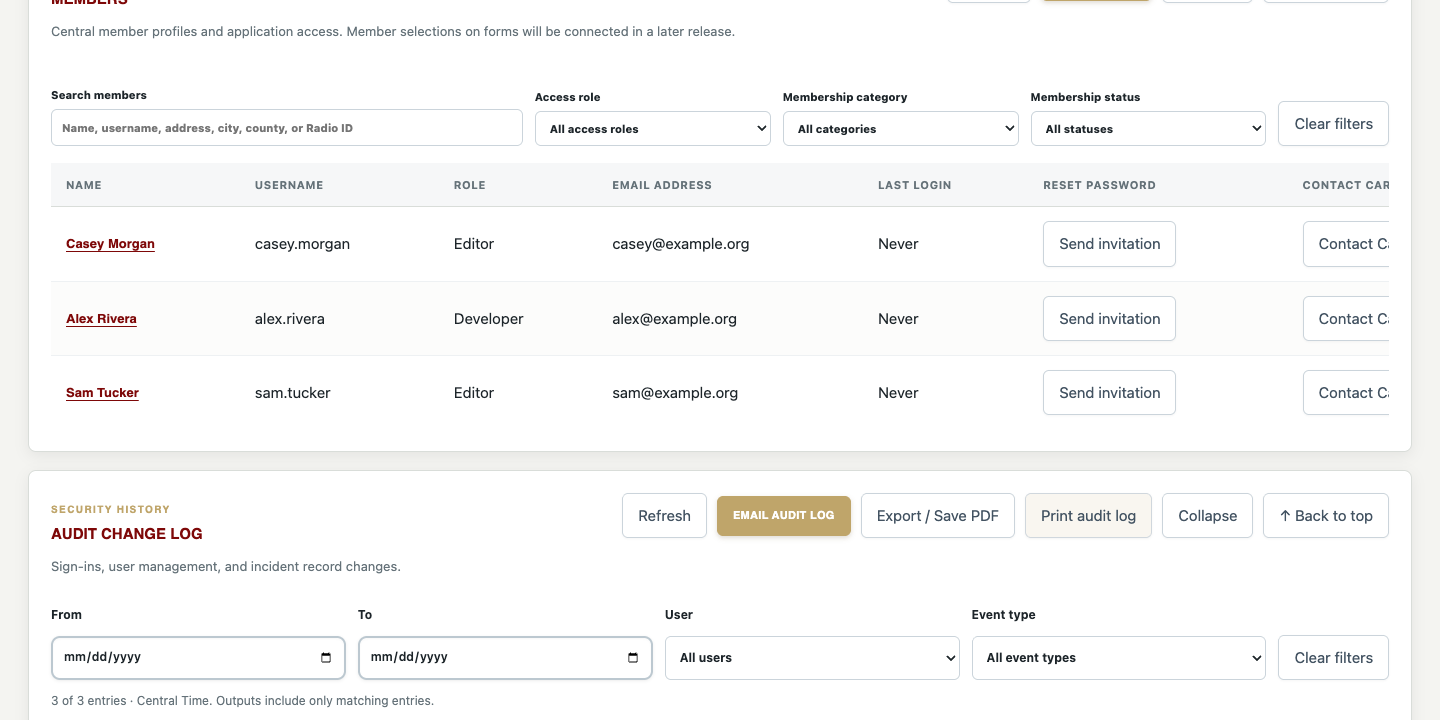
Audit Log now combines date, user, and event filters. Print, PDF, and email include matching entries and their recorded details, including notification recipients.
Member fields, Audit Log, membership reports, and run/inspection option groups can be expanded or collapsed. Long member and audit lists use contained scrolling and Back to top.
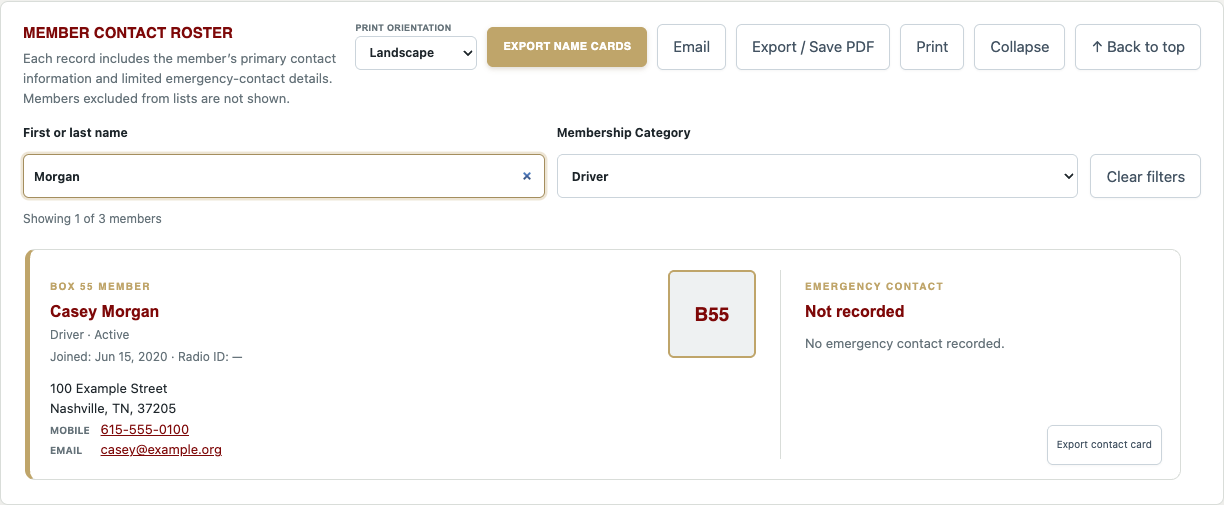
Member Contact Roster supports first/last name search and Membership Category filtering, including focused print, PDF, email, and contact-card exports.
Administrator and Developer sessions remain signed in without an application expiration. Editor and Driver sessions expire after 72 hours from sign-in. Returning with an existing session can create a sign-in audit event.
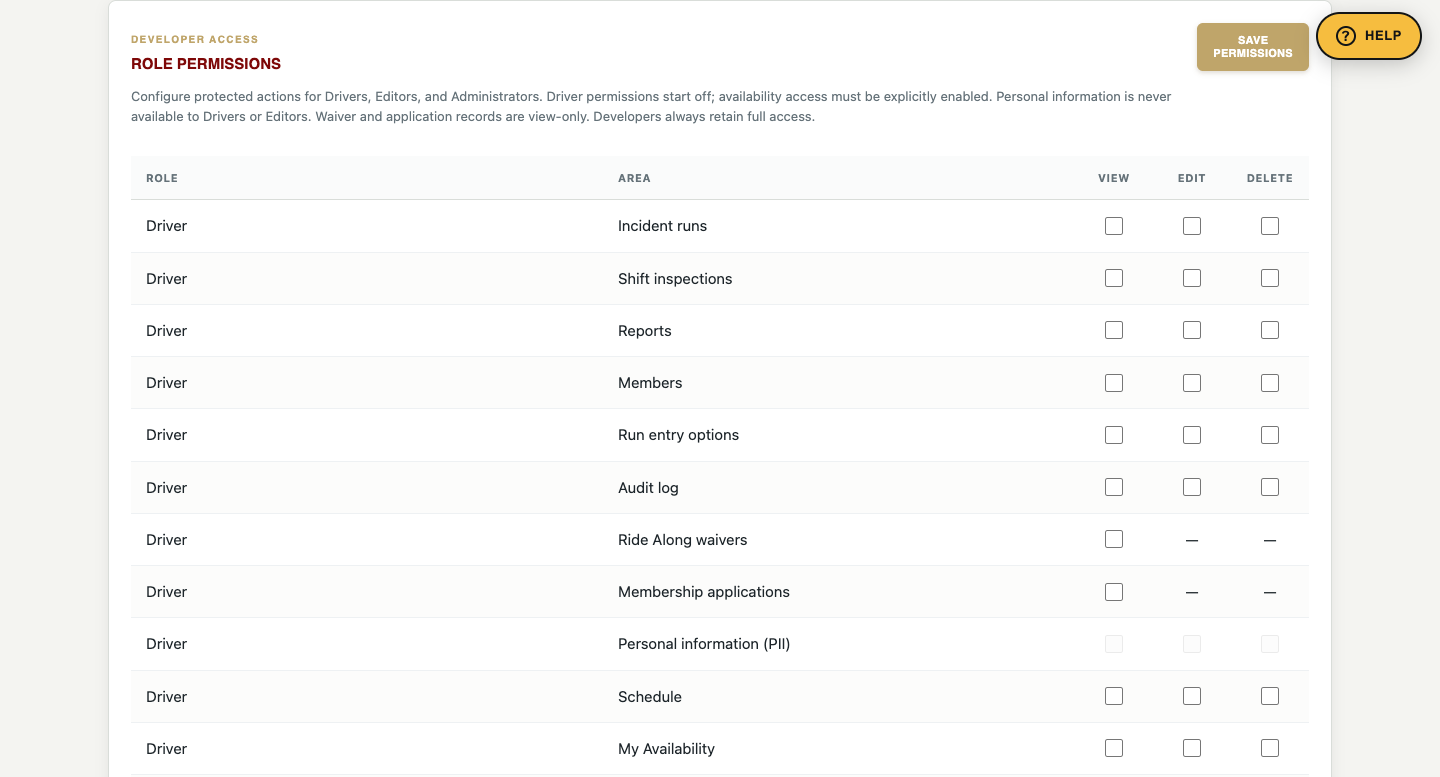
The Driver access role is available for planning future access. All its permissions remain off by default; assigning the role does not enable availability or exports.
Action buttons follow a common order. Mobile submenus swipe horizontally, and the page expands to landscape width without requiring a reload.
Chapter 02
Accounts roles and access
An access role controls what a person can do in the software. A membership category describes that person’s organizational membership. They are separate fields. For example, a member categorized as Officer does not automatically receive the Officer Workspace unless their access role is Administrator or Developer.
Identity
Typical access in this release
Visitor not signed in
Public entry forms and public information where available; published Schedule and Print Calendar. Protected records and schedule exports require sign-in.
Driver access role
Can sign in, but all protected permissions start off. Public Schedule and Print Calendar remain available; My Availability and schedule exports are not enabled by assigning this role.
Editor
Incident and inspection work according to configured permissions; ordinary reporting; schedule email when signed in. Eligible drivers can use My Availability.
Administrator
Officer Workspace, schedule settings, member administration, protected records where permitted. Cannot change Developer-only settings or edit/delete protected application and waiver records.
Developer
Highest access, including role-permission changes, protected record maintenance, and destructive data tools. Officer Workspace is available.
Membership category Driver Officer or Driver/Chaplain
Eligible for driver lists and scheduling if not excluded or suspended/terminated. Membership category alone is not an administrative permission.
Permissions can be customized. A missing button or access-denied message may reflect the signed-in role, a configured permission, or a record-specific restriction. Developer access is not simply another driver category. Editors cannot view protected personally identifying application data.
Sign in and sign out
Choose Sign in in the header, or use the sign-in prompt displayed by a protected action.
Enter your assigned username and password. Confirm the header shows the intended account and role.
Use Sign out when finished, especially on a shared iPad or station computer.
Session duration and returning visits
Session policy updated in release 2026.10.16-161: Editor and Driver sessions last 72 hours from sign-in. Opening or using the site does not restart that deadline. After expiration, sign in again. Administrator and Developer sessions have no application expiration and remain signed in until sign-out or revocation; the browser can still remove stored cookies or require another sign-in. Valid existing Administrator sessions are retained; existing Editor and Driver sessions use 72 hours from their original sign-in, not from the update.
A successful password login is recorded as sign-in. Returning to a visible website tab with an existing valid session after at least 30 minutes since its last recorded activity also records sign-in, with the description Returned to the app using an existing signed-in session. It updates the member’s last sign-in time without requiring another password entry.
Ordinary page requests, short navigation between tabs, background activity, and demo-driver changes do not each create a sign-in event. The audit actor remains the actual signed-in account. A returning-visit event does not extend the seven-day session for a non-Developer. Always sign out on shared equipment, including when using a Developer account.
Request access or reset a password
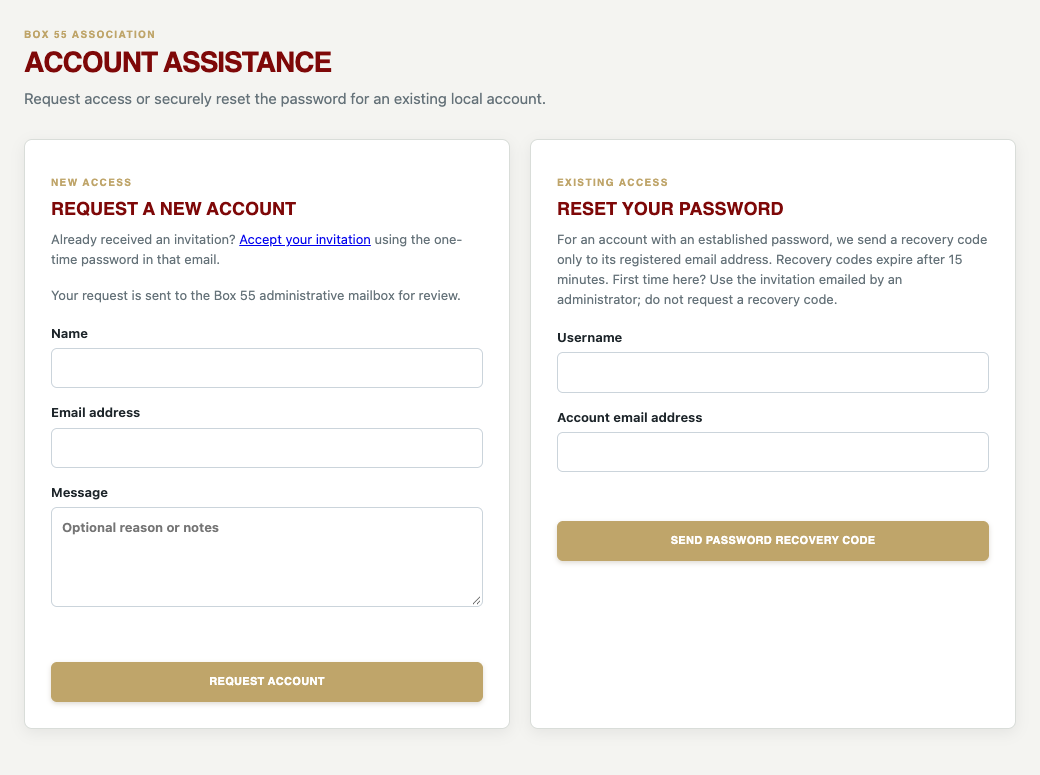
Account Assistance provides separate new-account and password-reset workflows. Select image to enlarge.
Open Account Assistance at https://box55forms.online/account.html. For new access, enter your name, email, and an optional explanation, then select Request account. An administrator reviews the request; it does not immediately grant access.
For an account with an established password, enter your username and its registered email. Select Send password recovery code. This recovery code is separate from a first-time invitation.
Enter the six-digit code within 15 minutes, then enter and confirm a new password of at least 12 characters.
For first-time access, open the invitation emailed to your member profile address. Enter its username and one-time password, which expires after 72 hours and works only once. You must choose a permanent password before accessing the application; finish within 15 minutes after verification, then sign in with that new password. Passwords require at least 12 characters; a unique passphrase of 16 or more characters is recommended.
If the registered email is wrong, ask an administrator to correct the member record. Never share a password, reset code, or invitation link. A password-reset invitation can invalidate existing sessions.
Chapter 03
Navigation forms and common controls
The main menu is shared across the project. Schedule is between Shift Change Inspection and Pre Trip. The second menu line changes with the selected area: for example, Incident RunSheet has Incidents, New Run, and Reports, while Schedule has its own availability and workspace tabs.
Open contextual Help
Choose gold HELP to open instructions for the current area or submenu. Wide screens use a resizable right-side split panel; smaller screens use a drawer or full-width panel. HELP floats below the application header and is omitted from document previews and print popups so it cannot cover Back or Print. Opening Help preserves unsaved work. Search, browse, or download the full PDF or editable Word manual from the toolbar.
Dates times and selections
Date fields accept a date using the browser’s calendar control or supported direct entry. Confirm the displayed year as well as the month and day.
Time controls support direct entry and, where provided, a clock icon. In the Officer Workspace Hours field, type 0800-1830 or 08:00-18:30. Only the clock icon opens its helper popup.
Schedule times are displayed in local operating context. The current-date marker on the published calendar uses America/Chicago. Review overnight dates carefully.
A single-choice selector permits one value. Checkboxes permit multiple values. Multi-select member and equipment controls permit multiple selections; desktop controls may use Command/Ctrl.
Selecting Other often reveals a required explanation. An unexplained Other is not a substitute for a meaningful category.
Search and From/To controls filter the current screen or report. Clearing a filter does not erase records.
Attachments and signatures
Use an actual, legible attachment appropriate to the record. Accepted formats and limits appear beside the upload control. Forms with a signature pad accept a mouse, touch, or stylus. Clear signature removes only the drawing; Clear form resets unsaved form values. A signature is not saved until the form submission succeeds.
What a successful action means
Wait for the success confirmation after submitting or saving. A browser validation message indicates a missing or malformed field. A server error means the action has not been confirmed. Check the record list before retrying after an ambiguous connection failure to avoid duplicate submissions.
Mobile menus and rotation
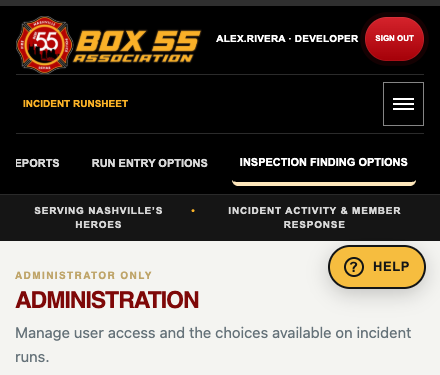
On phones, use the menu control to open the main navigation. Swipe left or right directly along the second-line submenu to reveal options beyond the screen. The submenu scrolls within the header rather than widening the document. On a keyboard, focus the submenu and use the arrow keys, or Tab to an individual option.
Rotation resizes the header and page without reloading or clearing unsaved inputs, and brings the selected submenu into view. Some tables have their own horizontal scrollbar; scroll inside the table rather than moving the whole page.
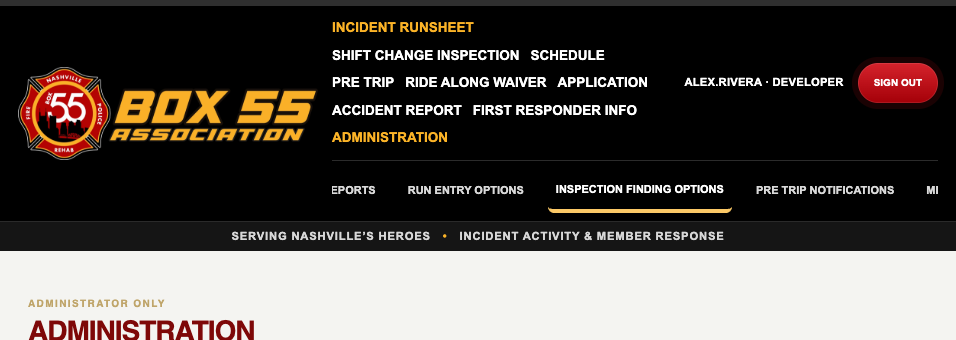
Portrait Administration keeps a horizontally scrollable submenu beneath the main menu control. Select image to enlarge.Landscape uses the available canvas width while the long Administration submenu stays inside the header. Select image to enlarge.
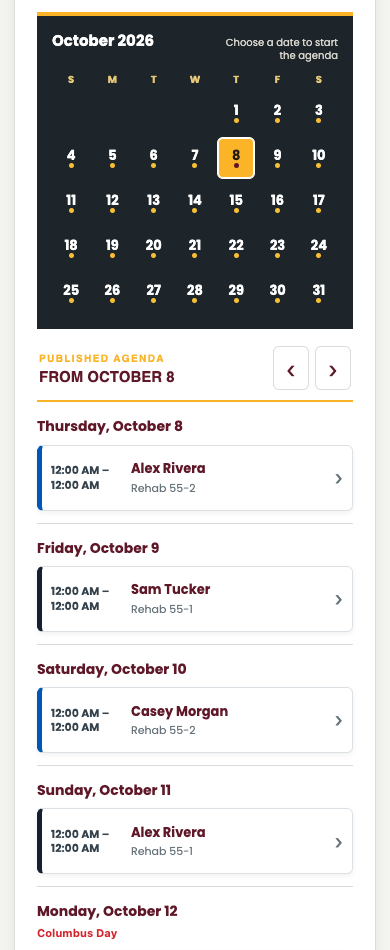
Schedule uses a compact month and chronological event-card view in narrow portrait layouts. Desktop calendar editing and printable output are intentionally different layouts.
Common action order and collapsible sections
Where available, actions run left to right: page-specific actions, Email, Export / Save PDF, Print, Collapse or Expand, and Back to top. Refresh, CSV, and contact-card exports stay left of the common group. Rows wrap on small screens; unavailable actions are not added.
Collapse hides content without deleting it; Expand restores it. Long tables scroll within their sections. Back to top returns to the section and resets its list, or returns to the top of the member-editor dialog. Output follows active filters, not the collapsed state or visible rows.
Versions and browser shortcuts
The published site footer identifies the release. If a screen differs from this manual, compare its footer with the release on the cover. A saved browser shortcut or installed web-app shortcut uses the Box 55 site icon. Use your browser’s Add to Home Screen, install, or Add to Dock option when available. A shortcut opens the website; it does not turn the website into an offline native app.
Chapter 04
Incident runs and entry
An incident run is the operational record of a response or other recorded activity. Use it after the activity to document time, location, participating people, equipment, and agencies. A Pre Trip notification is a separate alert and does not replace this record.
Find existing runs
Open Incident RunSheet → Incidents. Search by run number, address, city, activity, or agency. Use the separate Member field to filter by a member’s first name, last name, or full name; it checks both members present and the reporting driver, including historical Last, First names. Member search is case-insensitive and accepts partial names. Combine it with Search, Activity type, and From/To to narrow the results. Clear filters clears the member search and restores the default period. Select a run to inspect or edit it when your account has permission.
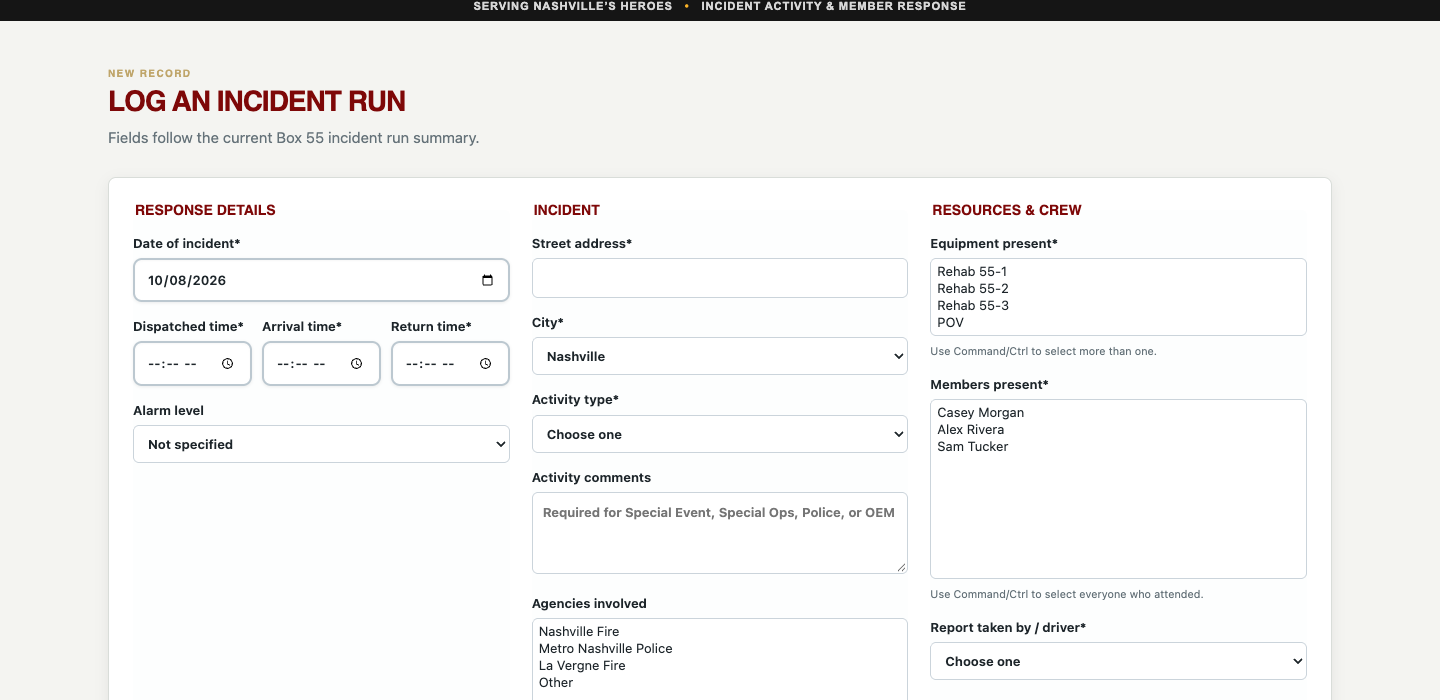
New Run groups response details, incident information, and resources and crew. Select image to enlarge.
Create a run
Choose New Run and enter Date of incident. Set Dispatched time, Arrival time, and Return time to the actual operational times.
Choose the alarm level. If applicable, use Other and enter the level description.
Enter the street address and city. If the city is not offered, select Other and provide it.
Choose Activity type. Add the required activity comments for entries such as Special Event, Special Ops, Police, or OEM; use comments to distinguish the specific activity.
Select the agencies involved, equipment present, all members present, and the report taker or driver. Select every participant whose attendance should count.
Add useful notes, review the form, and select Save incident run. The saved record receives its run number.
Field or option
Purpose
Dispatched Arrival Return
Response timing. Reported duration uses dispatch through return, including an overnight wrap when return precedes dispatch.
Alarm level
Describes response escalation independently of the activity category.
Activity type
Groups activity for reporting. Meeting and Training are not operational incident counts.
Agencies
Organizations involved. One run can appear under more than one agency.
Equipment present
Vehicle or personal-vehicle participation, not a shift’s odometer mileage.
Members present
Attendance and member participation hours. Omitting a member omits their participation from reports.
Report taken by or driver
The named person responsible for this entry or vehicle response.
Correct or print a record
Open the record while signed in, make the correction, and save. Delete is available only when permitted and permanently removes the record. Record printing opens its formatted output and the browser’s print workflow. Allow the application’s print preview if the browser blocks it. The form is an application report, not an automatic submission to an outside incident-reporting system.
Chapter 05
Incident reports and definitions
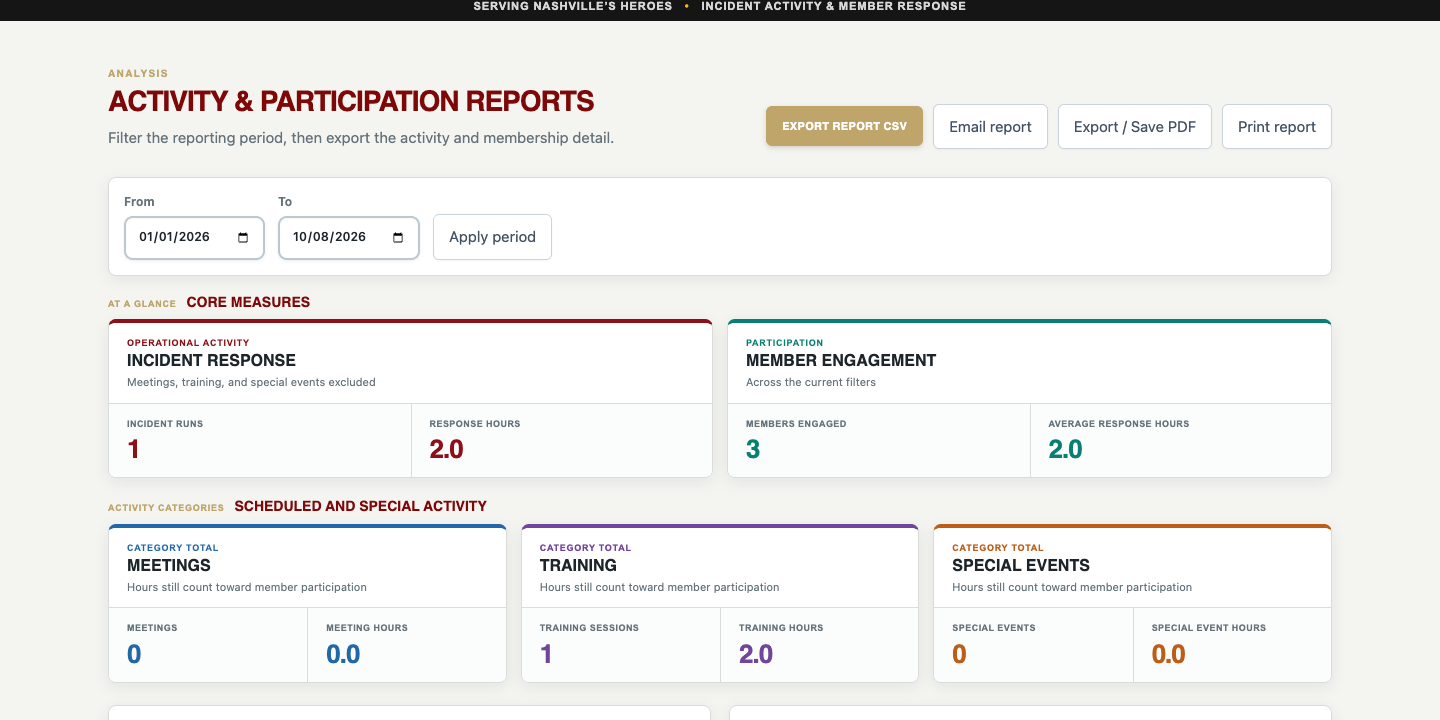
Open Incident RunSheet → Reports. Select From and To and apply the reporting period. Confirm the same date range before comparing any totals, exporting, or emailing.
Reports use the selected period and provide separate output actions for their sections. Select image to enlarge.
Measure or report
Meaning and use
Incident runs
Operational incident count. Meeting, Training, and Special Event are excluded from the operational incident measure.
Response hours
Dispatch-to-return duration counted once per run. It is not the sum of every member’s hours.
Meetings and meeting hours
Count and duration of entries categorized as Meeting.
Training and training hours
Count and duration of entries categorized as Training.
Special events and special event hours
Count and duration of Special Event entries, reported separately from operational incidents.
Members engaged
Distinct members represented by recorded participation, not total roster size.
Average incident hours
Average duration for the incident subset used by the measure.
Runs by activity type
Activity counts grouped by the saved category.
Runs by agency
Runs involving each selected agency; multi-agency totals can exceed the number of unique runs.
Runs by alarm level and responses by equipment
Breakdowns of the saved alarm levels and participating vehicles/equipment, including formatted call-summary output.
Member participation
Attendance and hours credited to each participant. One two-hour run with three members creates six member-hours.
Month-to-month activity
Monthly operational counts/hours and prior-year comparisons. The table also separates meetings, training, and special events, and counts member attendances.
Incident run detail
The underlying entries supporting the selected reporting period.
Use a report
Choose the reporting period and review summary totals.
Select a member name where the report offers a participation drill-down. Review their supporting entries before treating the total as final.
Choose Print, Export / Save PDF, Export CSV, or Email report when that section provides the action. See the output chapter for recipient and print settings.
Duration calculations support a normal overnight response by adding one day when the return time precedes dispatch. They are not a general multi-day timestamp model. Investigate unexpectedly large durations and incorrect time entries instead of assuming a report correction will change the source record.
CSV is structured data for analysis or an authorized import workflow; it is not the formatted PDF. Totals grouped by agency or participation answer different questions and should not be added together as though they were unique runs.
Chapter 06
Shift change inspections
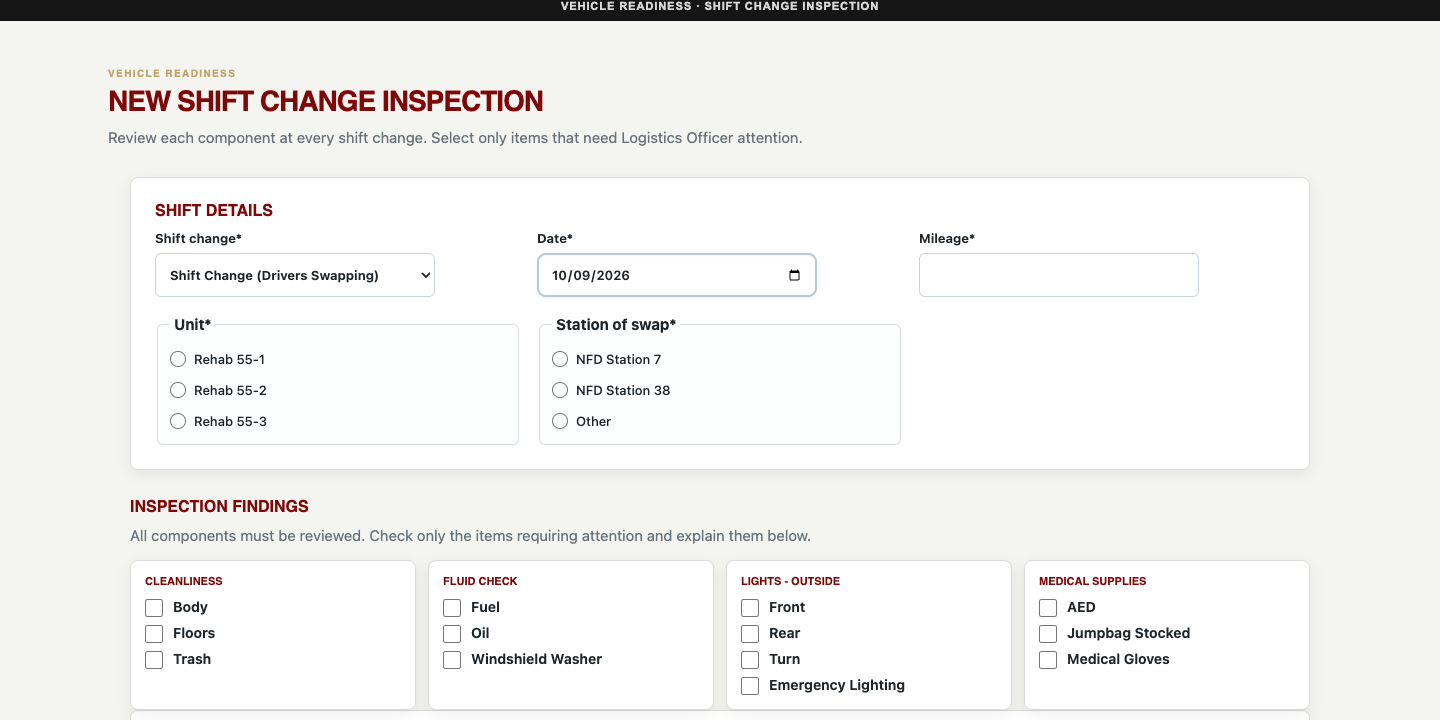
A shift inspection documents who takes or returns a vehicle, its odometer reading, its location, and anything requiring Logistics Officer attention. Review every component, but check only items that require attention. An unchecked item is not a checklist of work completed.
Shift details identify the event, date, odometer, vehicle, and handoff location. Attention findings are grouped below. Select image to enlarge.
Shift change choice
When to use it
Start of Shift No one is dropping off
A driver begins use of the vehicle without a simultaneous driver handoff. Enter the incoming driver.
End of Shift No one is Picking up
A driver returns the vehicle without an incoming driver. Enter the returning driver.
Shift Change Drivers Swapping
A handoff between outgoing and incoming drivers. Enter both driver identities.
Submit an inspection
Open Shift Change Inspection → New Inspection. Choose the event type, date, and Mileage. Mileage is the odometer reading, not the miles driven during this shift.
Choose Rehab 55-1, Rehab 55-2, or Rehab 55-3 and the station of swap. Selecting Other requires the location description.
Select the applicable incoming and/or returning driver. If the person is missing, choose NAME NOT LISTED and provide the name; ask an administrator to correct their directory eligibility.
Review cleanliness, coolers, fluids, leaks, lights, mechanics, windows, wheels, radios/electronics, vehicle body, rehab supplies, and medical supplies. Your configured groups and choices may differ.
Check attention items and describe each problem in the notes. For Other, enter a specific description. Attach supporting photos if useful.
Complete the signature and save the inspection. Confirm the saved record appears in Inspections.
Up to eight finding photos are accepted, with a 4 MB limit per photo and JPEG, PNG, or WebP formats. Document a condition clearly; do not upload unrelated personal information.
Prior findings and corrections
When a previous finding is presented, determine whether it is resolved. The unresolved option carries the issue into the new inspection for continued attention. Do not mark it resolved merely to dismiss the prompt. Open a saved inspection from the list to correct its event type, date, odometer, driver, or notes when authorized. Photo links open the existing attachments.
Inspections has search and date filters, plus counts for inspections, inspected units, flagged items, and each unit’s miles. The landing-page mile summary uses the odometer spread in its filtered records. For reconstructed full-shift mileage, use Reports as explained next.
Chapter 07
Shift reports and complete shift mileage
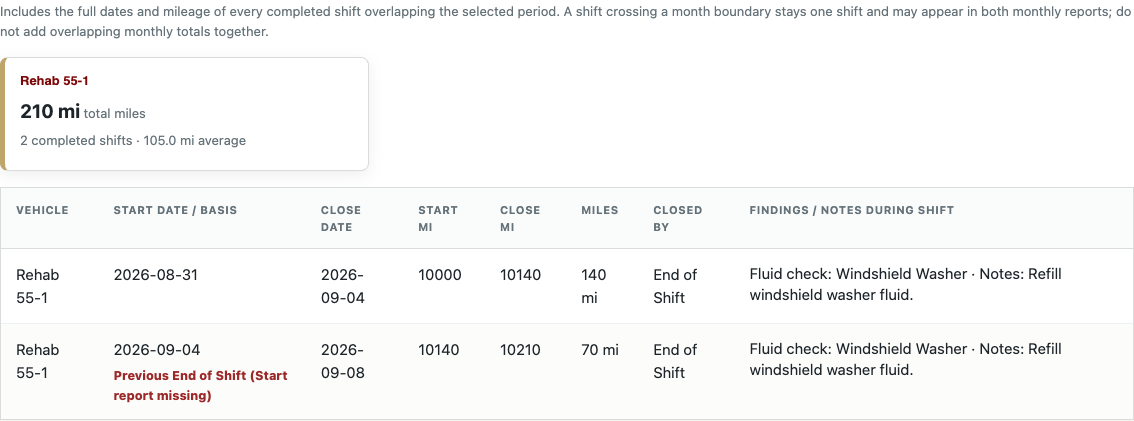
Open Shift Change Inspection → Reports. Select From, To, and Vehicle. Current year resets the reporting period. The report provides recurring findings and a reconstructed completed-shift mileage section; these serve different purposes.
The completed-shift report identifies start and end boundaries and calls out inferred boundaries for review. Select image to enlarge.
Recurring findings
A recurring finding is shown only when it appears in more than 50 percent of the selected vehicle’s inspections during the period. Exactly 50 percent is not sufficient. Occurrences, occurrence percentage, and most recent date help prioritize repeated maintenance attention.
How a completed shift is reconstructed
Available inspection history for the same vehicle
Report treatment
Start followed by End
Pair the two reports as one completed shift.
Start with no End followed by Shift Change
Use the handoff as the end of the outgoing shift and the start boundary for the incoming shift.
Start with no End followed by another Start
Use the next Start as the previous shift’s closing boundary.
End with no matching Start but a previous End exists
Use the previous End as the inferred start boundary. Flag the inference for review.
A real Start exists after a previous End
Use the real Start. Do not bridge idle time merely because a previous End exists.
No earlier usable boundary or no later closing boundary
Show the incomplete or review condition rather than inventing a completed shift.
Invalid missing or decreasing odometer readings
Flag for mileage review; do not treat the difference as a valid positive mileage total.
Shift pairing uses the full vehicle history before applying the selected reporting dates. A shift starting August 31 and ending September 4 remains one shift, rather than becoming two shifts at midnight on September 1. Its mileage is ending odometer minus starting odometer.
Cross-month accounting: a completed shift overlapping the requested period is reported as the complete shift, not a prorated fraction. The same cross-month shift can therefore appear in both adjacent monthly reports. Do not add those monthly full-shift totals without removing duplicates. The calculation does not change the original inspections.
Validate and share the report
Reports load when opened directly as well as when reached through Inspections. An empty recurring-findings report can mean no item exceeded the greater-than-50-percent threshold; it does not mean every inspection is missing. Review the mileage report separately and verify From, To, Vehicle, source records, and any incomplete boundaries.
Check every inferred boundary and mileage warning against the saved inspections.
Correct the source inspection if its type, date, or odometer is wrong, then rerun the report.
Confirm the selected vehicle and reporting period before printing, exporting, or emailing. The output should retain the shift boundaries and review indicators.
Chapter 08
Published Schedule
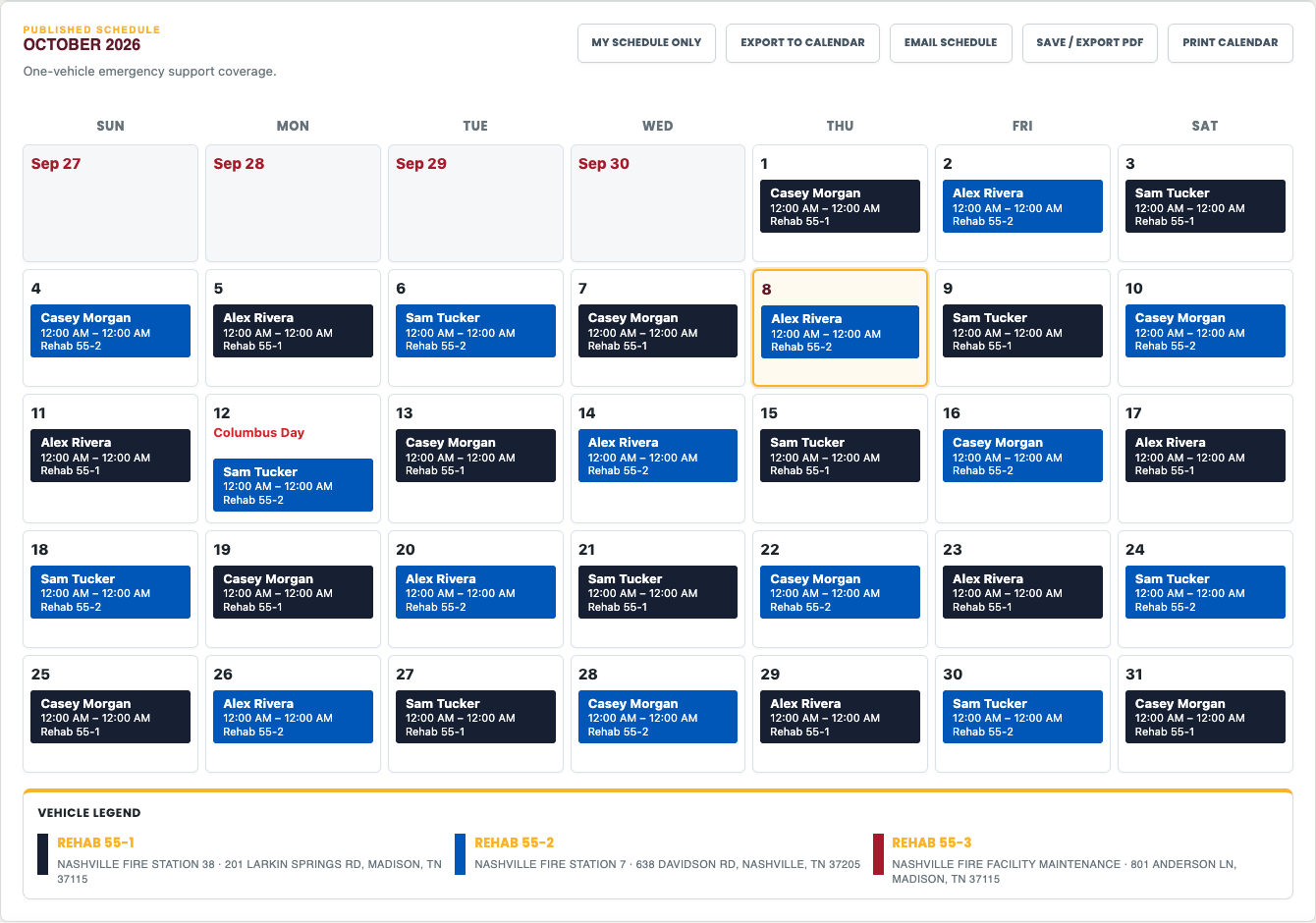
Schedule → Schedule is the public duty calendar. A visitor can read it and use Print Calendar without signing in. My schedule filtering, individual-driver views, calendar-file export, PDF export, and email actions require sign-in. Email is restricted to a signed-in Editor, Administrator, or Developer.
The published calendar shows duty entries with vehicle colors, adjacent-month dates, and a vehicle legend. Select image to enlarge.
Read and navigate the calendar
The default published view chooses the most recent published month on or before the current month, rather than automatically opening next month’s planning calendar.
Use month arrows to browse. If the selected month is not published, the screen says so; a draft is not substituted for the public schedule.
Today is outlined on the live website only. Printed, PDF, and emailed versions omit that outline.
Previous- and next-month dates are red to distinguish them from the selected month. Their assignments are shown when the adjacent published data is available.
The calendar always has seven day columns. It uses five week rows where sufficient and six for months that require them.
A shift can start in one month and finish in another. Start and End annotations identify the handoff boundaries; continuing entries are not separate daily shifts.
Vehicle color
Vehicle
Dark navy
Rehab 55-1
Blue
Rehab 55-2
Red
Rehab 55-3
The footer legend gives each vehicle’s station and address as configured in Schedule Administration. A red vehicle indicator identifies Rehab 55-3; an explicitly labeled Driver Needed period means coverage is missing. Read the label, not just the color.
Individual and mobile views
After signing in, use My schedule only to focus on your assignments or select a driver where the interface offers a driver schedule. On a narrow portrait phone, the calendar uses a compact month and chronological event cards sorted by date and time. Choose a day or Show next 7 days to navigate the agenda. Landscape and larger screens retain the grid.
The portrait agenda avoids compressing seven event columns into a narrow phone screen. Select image to enlarge.
The live calendar may show full names. Print, PDF, and email shift labels normally show a first name only. When more than one eligible driver has that first name, a last-name initial is added, such as Rick S and Rick L. The distinction is based on the driver directory, not only the people appearing in that month.
Chapter 09
My Availability and special requests
My Availability lets an eligible signed-in member with the appropriate access state when they can be assigned. The new Driver access role has availability permissions off by default and cannot use this private workflow until explicitly authorized. Existing eligible Editor, Administrator, and Developer workflows remain available. Availability is not the published schedule: submitting it does not promise a shift, and editing it does not automatically change a published assignment.
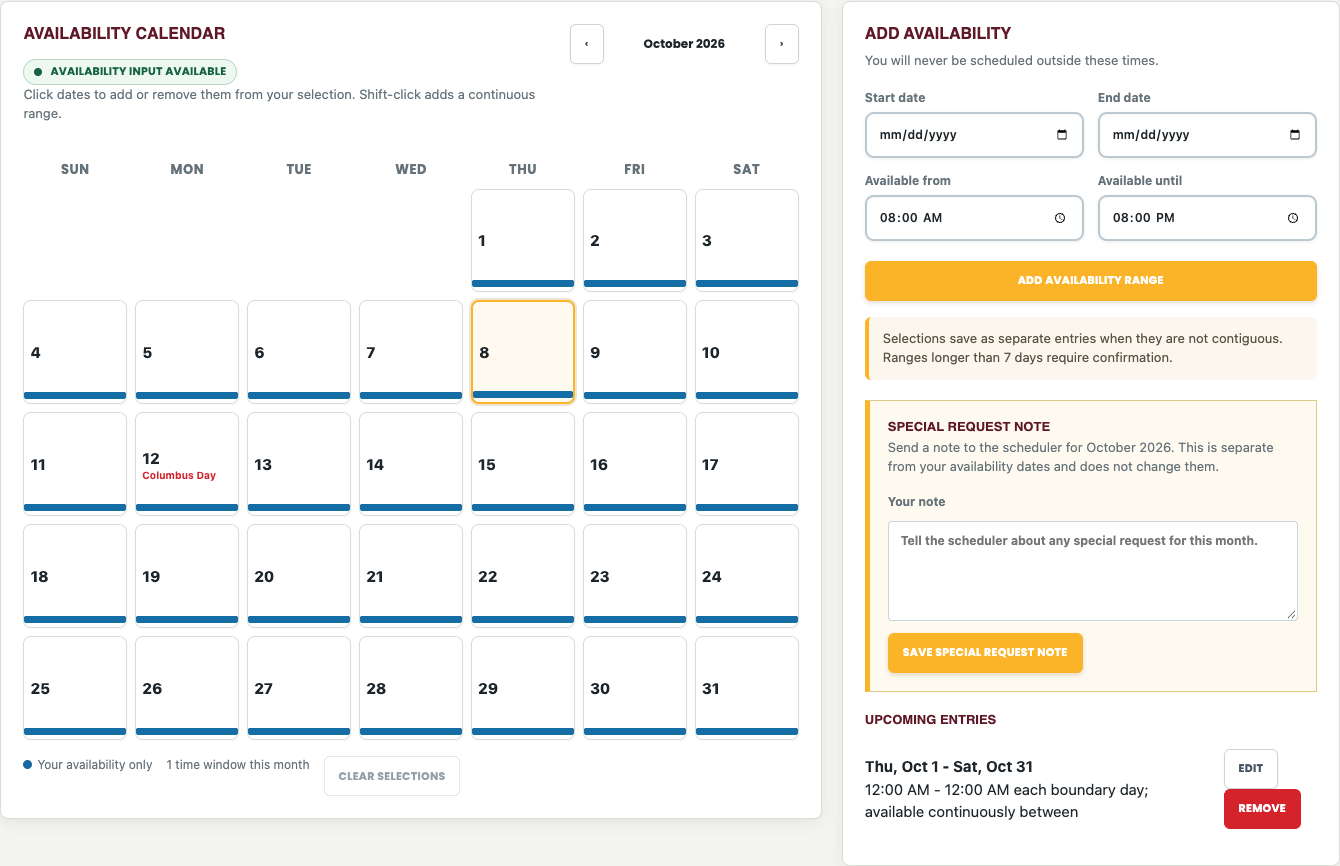
Availability combines a selection calendar, date and time entry, upcoming entries, and a separate special-request note. Select image to enlarge.
Submit availability
Confirm the signed-in account or the clearly displayed demo-driver focus. Choose the planning month with the month arrows; planning normally starts at next month.
Check the status: Availability input available permits changes; Availability input locked prevents driver submissions, changes, removal, and special-request edits.
Select dates on the calendar, or enter Start date and End date. Clicking toggles a selected date; Shift-click on desktop selects a continuous range. Clear selections removes only the pending selection.
Enter Available from and Available until. Use explicit start and end dates for an overnight or multi-day interval. Review both ends before choosing Add availability range.
Confirm a range longer than seven days when prompted, or cancel and correct it. A month boundary alone is not a reason to reject a range.
Review Upcoming entries. Use Edit and Save changes to correct one, Cancel to abandon an edit, or Remove to delete it.
Important range definition: a multi-day range is continuous from the first date and starting time through the last date and ending time. October 1 at 08:00 through October 3 at 20:00 includes the intervening nights. It does not mean 08:00–20:00 on each day. Create separate entries if you are unavailable overnight. Noncontiguous selected dates save as separate entries.
Privacy: the availability calendar and submitted-availability bars show only the current driver’s entries. Other drivers’ availability is not exposed on this page. Officers review member availability in their workspace.
Send a Special Request Note
Find Special Request Note on My Availability. Describe the request plainly, with explicit dates, days, or shift limits where possible.
Select Save special request note. The note belongs to the driver and planning month, not to one availability segment.
If you change the note, save it again. The officer must review the updated wording before its suggested rules can affect generation.
Examples: “Please avoid Mondays”; “Prefer Rehab 55-2”; or “Please only schedule me for 2 x 24hr shifts as I am still easing back into full time.” A note is not automatically enforced simply because it was submitted. The officer must approve the interpreted rule, and unrecognized text requires human review.
Administrator demo-driver focus
Administrators and Developers can use Switch demo driver in the second header line to cycle through eligible drivers in last-name, first-name order. The focus banner identifies whose availability is being edited while the top header still identifies the actual signed-in account. Exit demo preview restores normal focus. This is not a disposable sandbox: saved availability and notes belong to the selected driver and persist in the database. Printed, exported, and emailed calendars omit the focus banner.
Chapter 10
Officer Workspace and availability control
Officer Workspace is available to access roles Administrator and Developer. An Editor or a member whose category is Officer does not receive this workspace just from that category. It is the review and drafting area for a selected planning month.
Open the month for planning
Open Schedule → Officer Workspace and choose the month to build.
Review the counts for members with availability, current assignments, and eligible drivers.
Use Lock availability input when collection should close, or Allow availability input when drivers should submit or correct their entries. The same available/locked status appears on My Availability.
Review Special Request Notes and the calendar before generating or changing assignments.
The availability lock is shared, not a separate switch for each month. Existing entries remain visible. An authorized officer can still enter member availability through officer tools while ordinary driver input is locked. The lock does not by itself publish or clear a schedule.
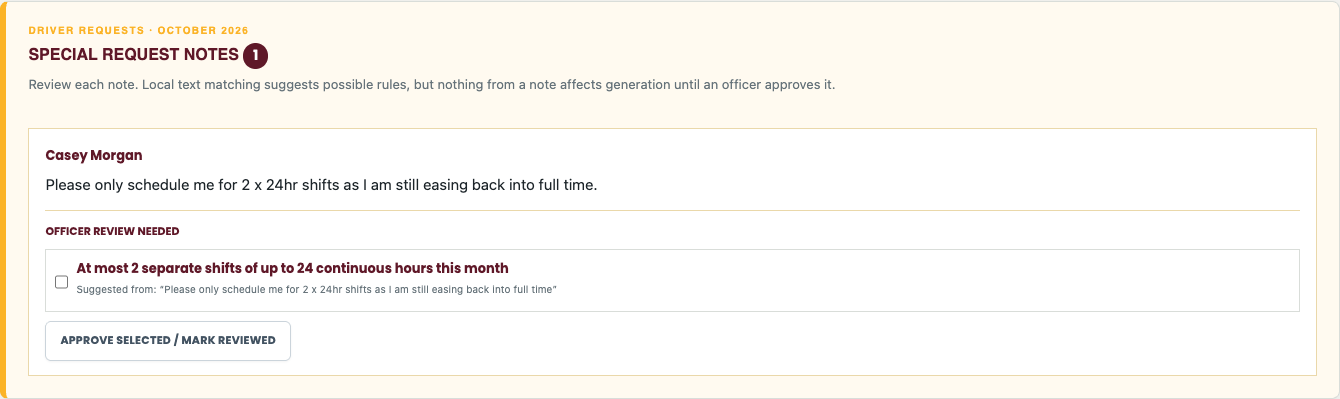
Special Request Notes are prominently placed in Officer Workspace and include suggested interpretations for officer review. Select image to enlarge.
Approve an interpreted request
Read the driver’s complete note. Compare each suggested rule with the intended request.
Select only the rules you agree with, then save the approval or mark the note reviewed using the controls on the note.
If no suggested rule matches, do not assume the note has been honored. Coordinate with the driver and apply an appropriate manual correction or request a supported rule.
Generate or regenerate the draft after approving changes. Inspect request outcomes and uncovered periods before publication.
For “only 2 x 24hr shifts,” the approved interpretation is a maximum of two separate shifts, each no longer than 24 hours, with no more than 48 total hours. It is a capacity ceiling, not a guarantee that exactly two shifts will be assigned. Availability and coverage can still limit the result. Approved hard unavailability and shift caps are not casually overridden to fill a gap.
Suggested rules can recognize supported weekday/date exclusions and preferences, vehicle preferences, and shift-cap wording. The interpreter is a defined local rule system, not an unrestricted language model. Arbitrary free-form requests are not automatically executable policy. Changing a note invalidates its previous interpretation approval.
Chapter 11
Generate and review a schedule draft
Generate schedule draft uses submitted availability, ordered assignment factors, vehicle targets, and officer-approved requests. It first selects an eligible member and then a vehicle. It is an explainable rules-based assistant; the officer remains responsible for the final schedule.
Generate safely
Confirm the month is not published and locked. Review availability, notes, approvals, and auto-scheduler settings.
If the current draft includes work you need to preserve, record or export it before regenerating. Generate schedule draft replaces the draft for the planning month.
Select Generate schedule draft. This creates assignments and a decision review; it does not publish the calendar or send email.
Review the assignment calendar for gaps, continuous coverage, handoffs, duplicate or conflicting assignments, and member workload.
Expand Schedule decision review below Manual Assignment and above Draft Assignments. It starts collapsed by default.
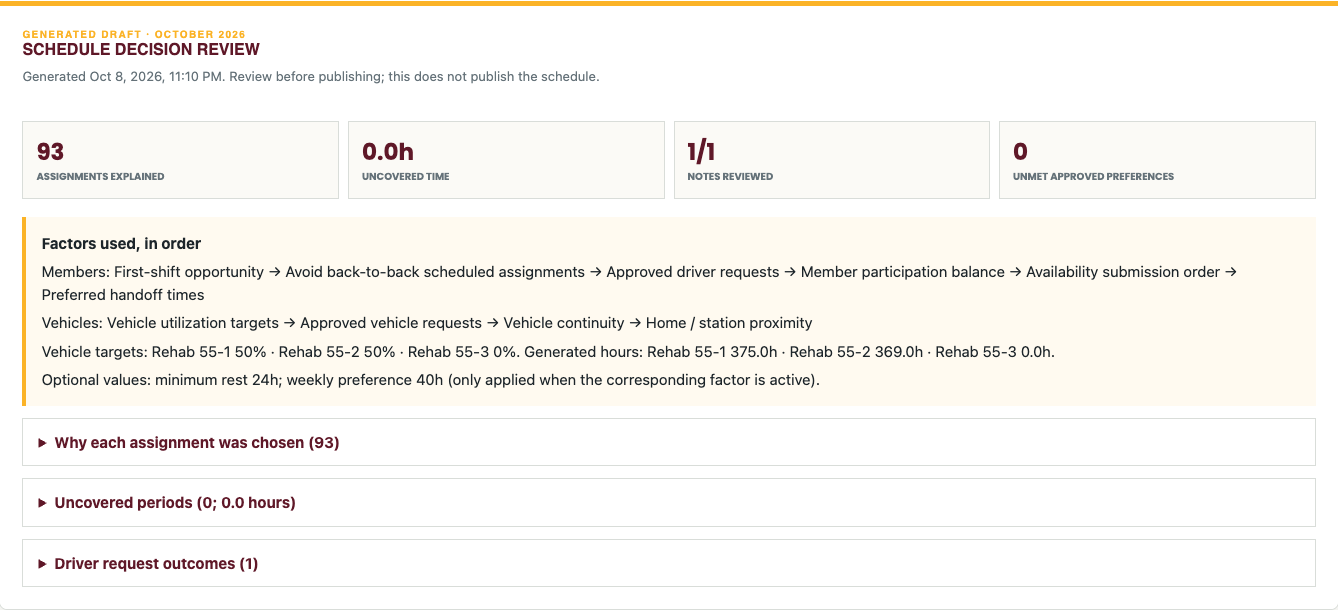
Decision review summarizes the factors used, uncovered time, approved-request outcomes, and assignment explanations. Select image to enlarge.
Review section
What to inspect
Assignments explained
Each generated assignment’s member choice, vehicle choice, timing, and available candidate count.
Factors used in order
The actual member and vehicle priorities applied, not merely the recommended defaults.
Vehicle targets and generated hours
The target percentages and resulting allocated duty hours for each vehicle.
Optional values
Rest-hour and weekly-hour preference values; they apply only when their factors are active.
Preferences overridden for coverage
Soft preferences the generator could not satisfy while maintaining available coverage.
Uncovered periods
Specific periods the available candidates and approved hard constraints could not cover.
Driver request outcomes
Reviewed versus unreviewed notes, approved interpretations, and unmet preferences.
Stale review warning
The draft, notes, or approvals changed after generation. The old explanations no longer describe every current assignment.
First-shift opportunity favors giving every available eligible member one assignment before additional assignments. Avoid-back-to-back and balancing factors guide comparable candidates; they do not create availability that a member never submitted. Soft preferences can yield to coverage, while an approved hard exclusion or shift cap can leave a gap requiring officer action.
After manual changes
The decision review explains generated decisions, not the reasoning behind manually entered shifts. Regenerating refreshes explanations but also replaces the current draft. Do not regenerate solely to clear a warning if doing so would discard approved manual work; review and document those changes before deciding how to proceed.
Clear the draft
Clear schedule draft removes the selected month’s draft assignments, Special Request Note approvals, and Schedule decision review after confirmation. It retains submitted availability and the original note text. Re-review and approve notes before generating a replacement draft. Clearing is not a way to erase driver availability or published history.
Calendar review overlays
Use Show/Hide multiple availability to identify times with multiple candidates, and Show/Hide unscheduled availability to inspect availability not used by the draft. Review the labeled uncovered periods as coverage gaps. On the web workspace, day boxes expand to fit assignment cards without overlapping. Holiday names are anchored at the bottom of these workspace day boxes, away from the editable timeline bars.
Chapter 12
Manual assignments editing and publishing
Manual assignment tools let an authorized officer make an approved correction or exception. Unlike generation, a manual entry can be outside a driver’s submitted availability. Verify consent, conflicts, duty limits, and coverage before saving an exception.
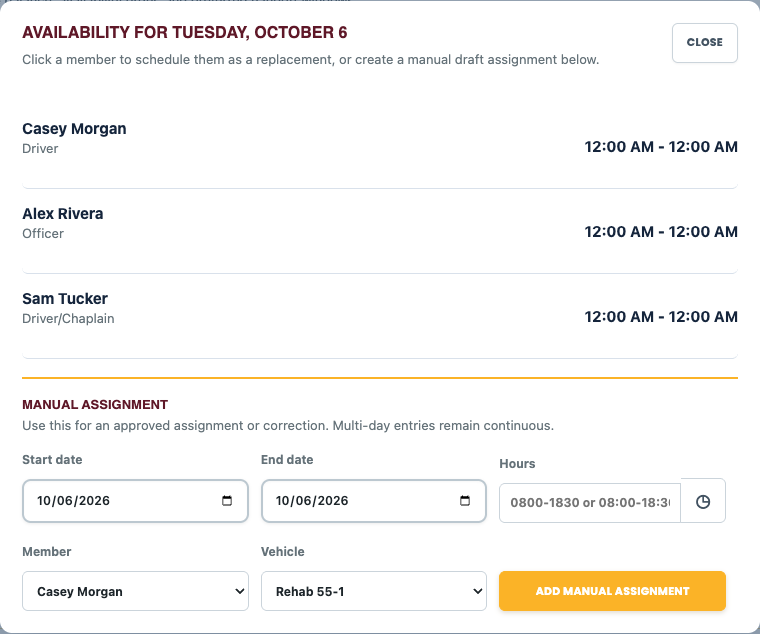
The date popup offers available members and an explicit start/end range for a manual assignment. Select image to enlarge.
Enter or replace an assignment
Click a day in the assignment calendar to open its availability and manual-assignment popup. Available member actions can fill uncovered time or replace the assignment shown.
Enter Start date and End date, Hours, Member, and Vehicle. For a range crossing months, use the explicit start and end dates.
Type hours such as 0800-1830 or 08:00-18:30. Do not wait for an automatic popup while typing. Select the clock icon only when you want the start/end time helper, then choose Use times or Cancel.
Review the range and select Add manual assignment. A range exceeding seven days asks for confirmation rather than imposing a month boundary.
Alternatively use the standalone Manual Assignment section for a date, hours, member, and vehicle, then Add shift. Use the explicit range popup for multi-day entries.
An end time equal to or earlier than the start can imply an overnight interval in applicable manual-entry controls. The date range is the clearest way to represent a multi-day shift. 24:00 marks the end of the displayed date; 00:00 marks the beginning. Confirm the rendered assignment rather than relying on the typed string alone.
Edit calendar entries
Select an assignment to edit its start/end date and time, member, or vehicle. Save changes commits the update; Delete removes it.
For a multi-day assignment, choose This day only to split and change the selected day, or Entire assignment to update the whole continuous entry.
Desktop drag selection can open a manual range across dates. Timeline edge handles adjust boundaries in half-hour steps; verify the resulting times after dragging.
Repair continuous shifts can consolidate compatible fragmented entries. Inspect the repaired result; the utility does not waive availability or officer review.
Published months are locked. Editing controls become available only after an authorized unlock/unpublish action.
Publish and lock
Review all Draft Assignments, approved capacity limits, uncovered periods, and manual exceptions. Correct any approved shift-limit violations; publication blocks those violations.
Select Publish and lock and confirm the selected month. A month must contain assignments to be published.
Open Schedule → Schedule to verify the public snapshot, adjacent-month carryovers, driver labels, and vehicle legend.
Email the published schedule separately if desired. Publishing alone does not send an email.
Unlocking/unpublishing removes that month’s public published record and makes the draft editable. The public view can then show no published schedule for that month. After corrections, publish again. Communicate changed assignments through the organization’s normal process; editing a draft alone does not replace the distributed PDF or previous email.
Chapter 13
Schedule settings and factor definitions
Schedule → Administration is the scheduling settings area, distinct from the main Administration member directory. It has Auto-scheduler and Vehicle locations. The member list comes from the shared directory; there is no separate Schedule Edit Members database.
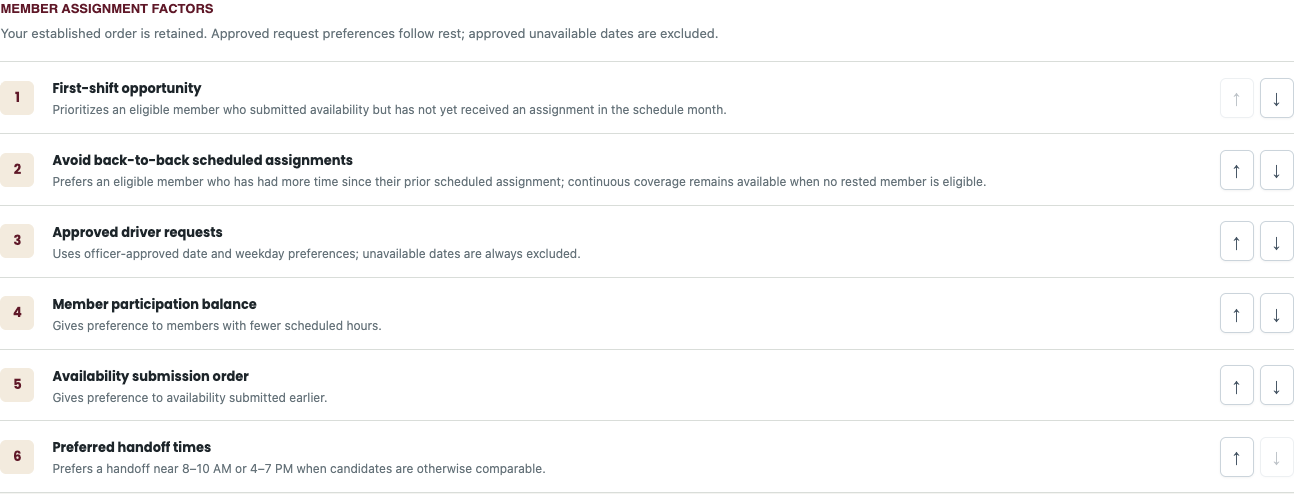
Member assignment factors are applied in the displayed order; the arrow controls change their priority. Select image to enlarge.
Recommended member order
Definition
1 First-shift opportunity
Favor an available eligible member with no assignment yet in the planning month.
2 Avoid back-to-back scheduled assignments
Prefer a member with more time since the previous scheduled assignment.
3 Approved driver requests
Apply officer-approved date/day preferences; hard unavailable dates are excluded.
4 Member participation balance
Favor fewer scheduled hours among otherwise eligible candidates.
5 Availability submission order
Prefer availability submitted earlier.
6 Preferred handoff times
Prefer handoffs near 8–10 AM or 4–7 PM where candidates are otherwise comparable.
Recommended vehicle order
Definition
1 Vehicle utilization targets
Distribute generated duty hours against the configured percentage shares.
2 Approved vehicle requests
Use an officer-approved preferred vehicle after higher-ranked factors.
3 Vehicle continuity
Prefer the vehicle most recently assigned to the selected member.
4 Home or station proximity
Use ZIP-code proximity as a tie-breaker, not live routing or a guaranteed nearest-station calculation.
Change priorities and optional preferences
Use the up/down controls to reorder a factor. Restore recommended factor order restores priorities; review numeric values and targets separately. Optional factors include a minimum-rest preference, weekly-hour preference, and weekend rotation. Add a factor to activate it, set its value when applicable, and save the factor values. Remove an optional factor to stop applying it.
Recommended starting values are 24 hours of preferred rest and a 40-hour weekly preference, subject to the application’s suggested value and your operating policy. These are scheduling preferences, not medical or regulatory duty limits. A saved number alone has no effect while its factor is inactive. Coverage-related preference overrides appear in the decision review.
Suggest another factor saves a proposal for future implementation. It does not convert arbitrary text into a running scheduling rule. Review its pending status and request implementation before relying on it.
Vehicle utilization and locations
All three utilization percentages are required and must total exactly 100 percent. The built-in starting targets are 50 percent Rehab 55-1, 50 percent Rehab 55-2, and 0 percent Rehab 55-3. Existing saved settings take precedence; review them before changing. A zero target means no target share, not removal of the vehicle from manual choices.
Vehicle locations stores each vehicle’s station name and address. These values appear in the published output legend and support proximity comparisons. Save location changes and confirm the output legend. They do not change the shared member addresses.
Chapter 14
Printing PDF export calendar export and email
Output actions differ by report. Print opens the browser’s print workflow; Export / Save PDF produces or opens a PDF or print-to-PDF workflow for the selected report; CSV exports structured rows; Schedule calendar export creates an .ics calendar file. Use the labeled action appropriate to the destination.
Print or save a schedule
Open the desired published month and verify whether you are viewing all drivers or a permitted individual schedule.
Choose Print Calendar or Export / Save PDF. For the browser print dialog, use landscape Letter, review scaling, and enable background graphics when needed to retain the vehicle colors.
Check the preview before committing: Box 55 logo and month header, seven day columns, five or six week rows as required, complete entries, and the vehicle legend at the bottom.
Ensure no content is clipped. If browser headers and footers add unwanted URLs or extra lines, disable those browser-generated items; retain the application’s own legend.
Print, PDF, and email schedule output use a compact left-aligned branded header, readable shift labels, vehicle color bars, and the same legend. They omit live today highlighting and demo-driver focus. Adjacent-month date labels remain distinguishable. A six-week month must keep its sixth row rather than dropping days to force a five-row layout.
Export to a calendar app
After signing in, choose the Schedule calendar export action and open/import the downloaded .ics file in a compatible calendar application. An imported file is a snapshot, not an automatic subscription to future edits. Re-export or update your calendar when assignments change, taking care not to create duplicates.
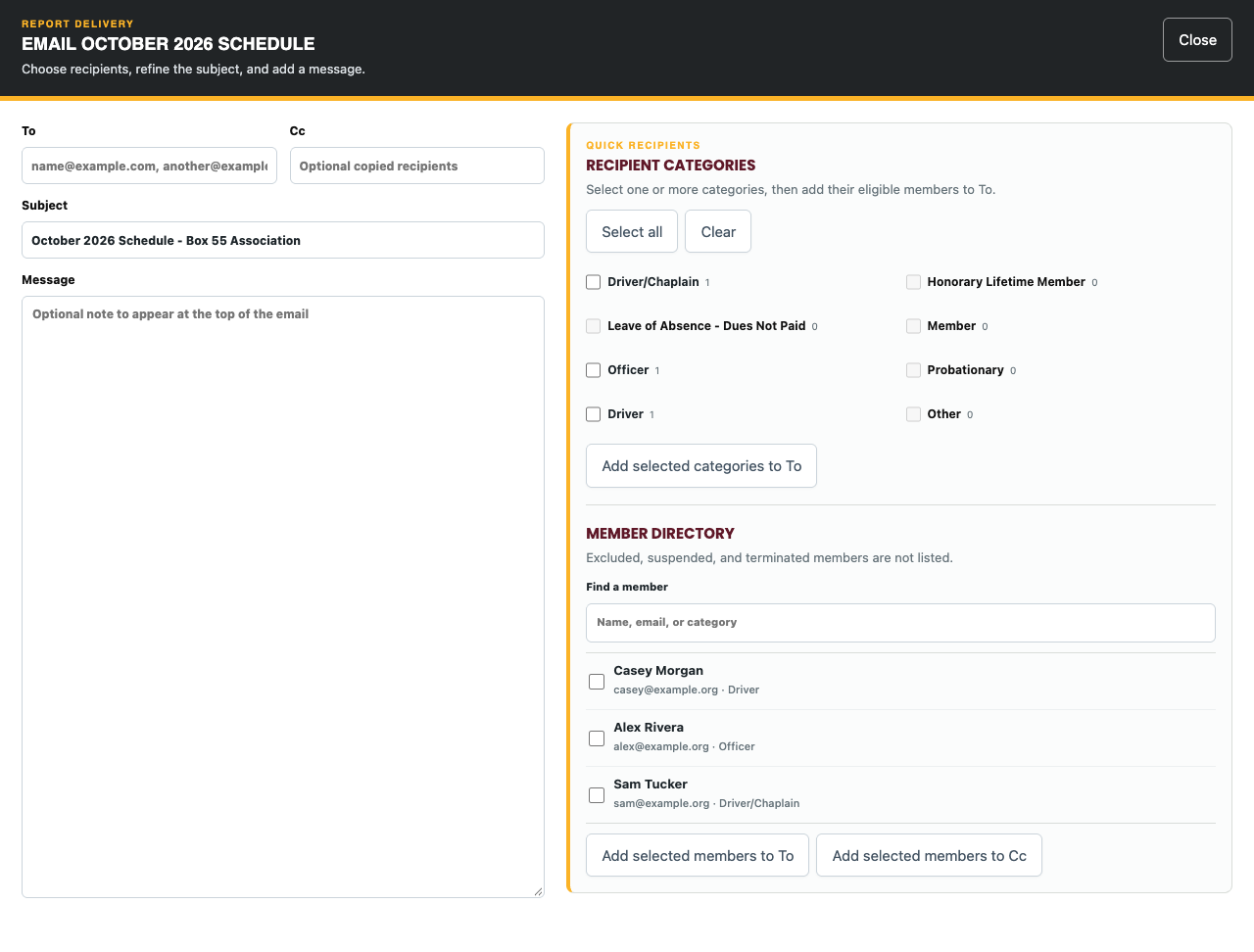
The common email composer separates recipients, optional copied recipients, subject, and a message above the report. Select image to enlarge.
Email a report or schedule
Sign in with an allowed role and select Email report or Email schedule for the intended report/month. Protected membership/application output also requires its protected-record permissions.
Enter recipient addresses and optional CC addresses. Where offered, use recipient-category selection or the member directory, then Add selected to the recipient list.
Review the final address list and subject. Directory choices are helpers; they do not eliminate the need to check recipients.
Enter an optional message. Its text appears above the emailed report and preserves line breaks.
Send once and wait for confirmation. Schedule email includes its embedded calendar and PDF attachment. For application selections, each record is its own PDF attachment.
Sending a report does not change the schedule or source record. Before emailing contact details, ID images, signatures, or emergency information, confirm that every recipient is authorized. Do not distribute protected application PDFs as though they were public calendars.
Multiple application records
Select the application/questionnaire checkboxes and use the selected-record action. Print selected combines the selected documents into one print request. Export selected downloads one PDF for a single selection, or a ZIP containing an individual PDF for each record when multiple are selected. Unzip it to access every PDF. Email selected attaches separate PDFs; names use the submitted timestamp and applicant name.
Chapter 15
Pre Trip notifications
Pre Trip records a departure notification and sends the configured alert where enabled. It is not a completed incident run or a vehicle shift inspection. Use it to tell the configured recipients about an intended response.
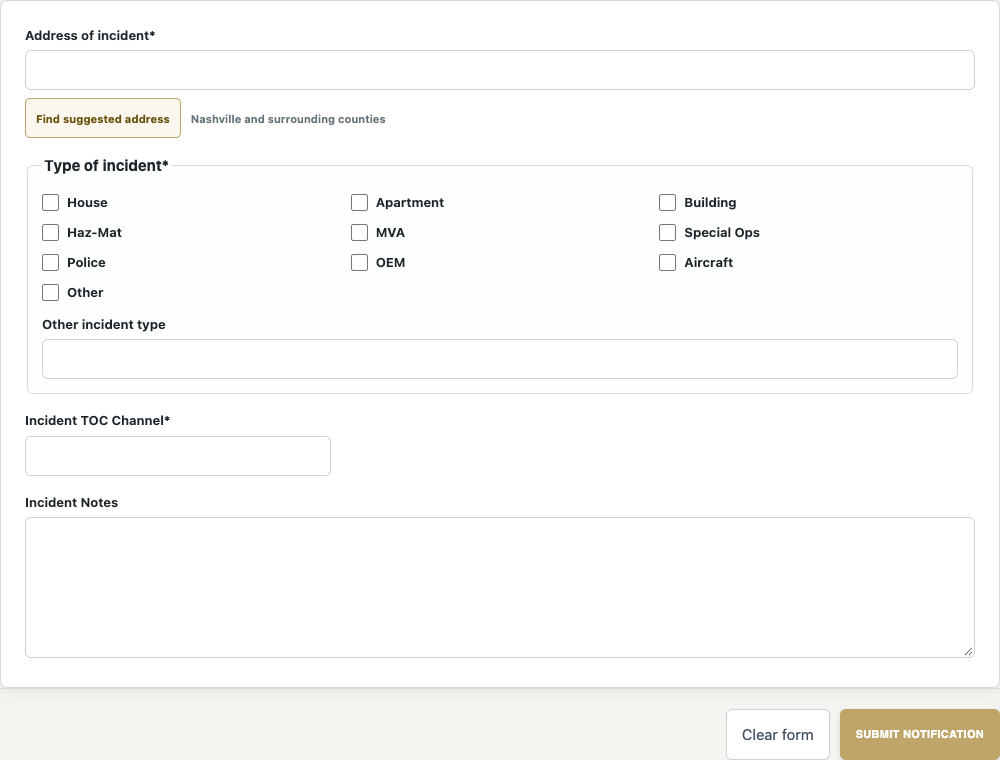
The pre-trip form records location, incident types, channel, and supplemental notes. Select image to enlarge.
Open Pre Trip → New Notification. Enter the street address.
Select the applicable incident type or types. Other requires a specific description.
Enter the Incident TOC channel and notes as appropriate to the response. Use the actual assigned tactical/radio channel rather than a guessed value.
Review and submit the notification. Confirm success, then follow normal response procedures.
After the activity, complete the Incident RunSheet and any required shift inspection separately.
Notification history and configuration
Administrators and Developers can review Notifications, including capture time, address, type, channel, and notes. Developer-only record deletion is available where shown. Notification delivery depends on member preferences and configured server services; a saved notification is not proof every recipient read it.
Main Administration → Pre Trip Notifications controls the optional I Am Responding email integration. Enable it only with the correct destination and review the status. The integration forwards the configured notification format; it does not synchronize a second membership database.
Chapter 16
Ride Along Waiver
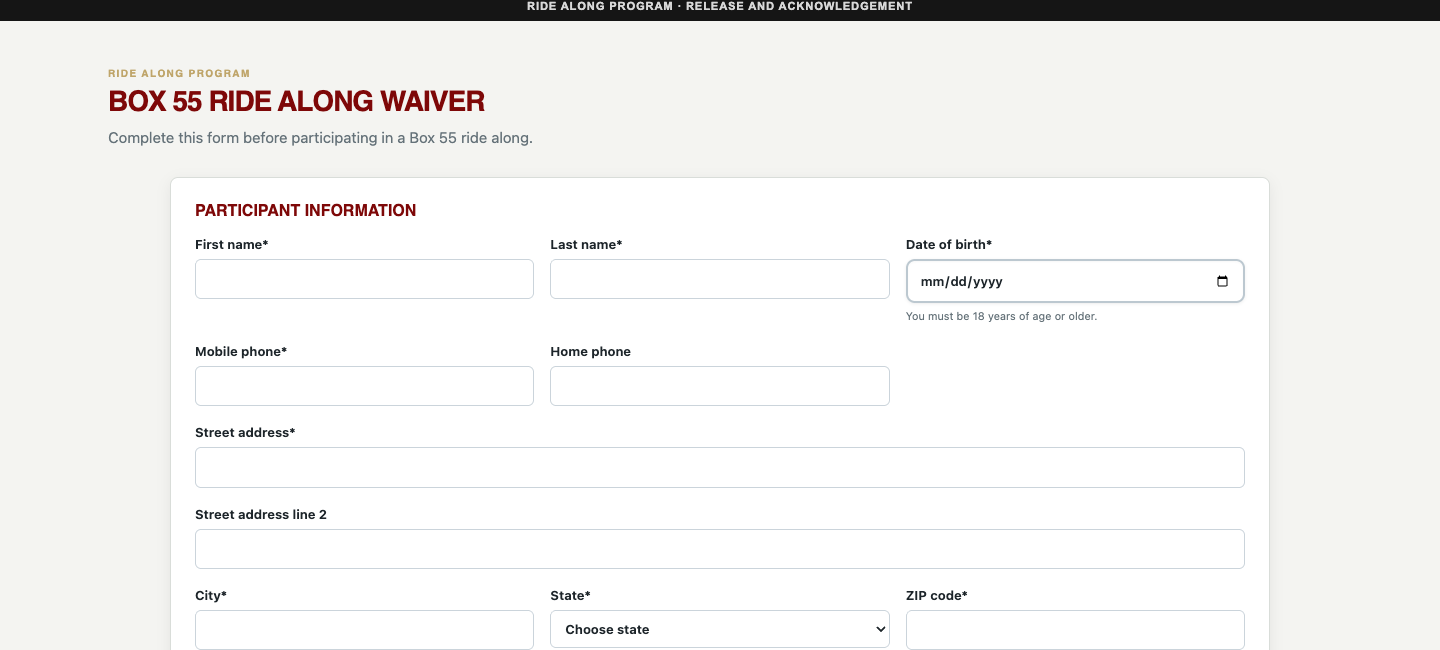
The Ride Along Waiver records participant identity, emergency contact information, the release acknowledgment, and a signature. Read the complete release on screen before accepting it. This manual explains the software workflow and does not replace the organization’s waiver or eligibility policy.
The waiver begins with participant information and date of birth. Select image to enlarge.
Open Ride Along Waiver → New Waiver. Enter the participant’s name, date of birth, address, state, and mobile phone. Home phone is optional.
The form requires an adult participant at least 18 years old. If the date is wrong, correct it rather than bypassing the age requirement.
Enter the emergency contact’s name and phone number.
If appropriate, upload the optional state ID and selfie. Each permits JPEG, PNG, WebP, or PDF up to 10 MB.
Read the release, check its acknowledgment, enter the signed date, and sign in the signature area.
Select Submit and wait for confirmation. Use Clear signature for a redraw or Clear form only before submission.
Protected waiver records
Waiver Records requires authorized protected-record access. Open a record to review its waiver and attachments. Administrators have viewing access where permitted; editing/deletion of protected waiver records is Developer-only. Treat participant identification, emergency contacts, and signatures as sensitive information when printing or sharing.
Chapter 17
Membership Application and Questionnaire
The application is Page 1; its linked questionnaire is Page 2 and can also be submitted independently. Submission does not create a login, approve membership, or establish Schedule eligibility. Where email is configured, the Page 1 staff alert names the applicant in its subject but redacts remaining personal information. A separate acknowledgement thanks the applicant and says a Board Member will follow up shortly.
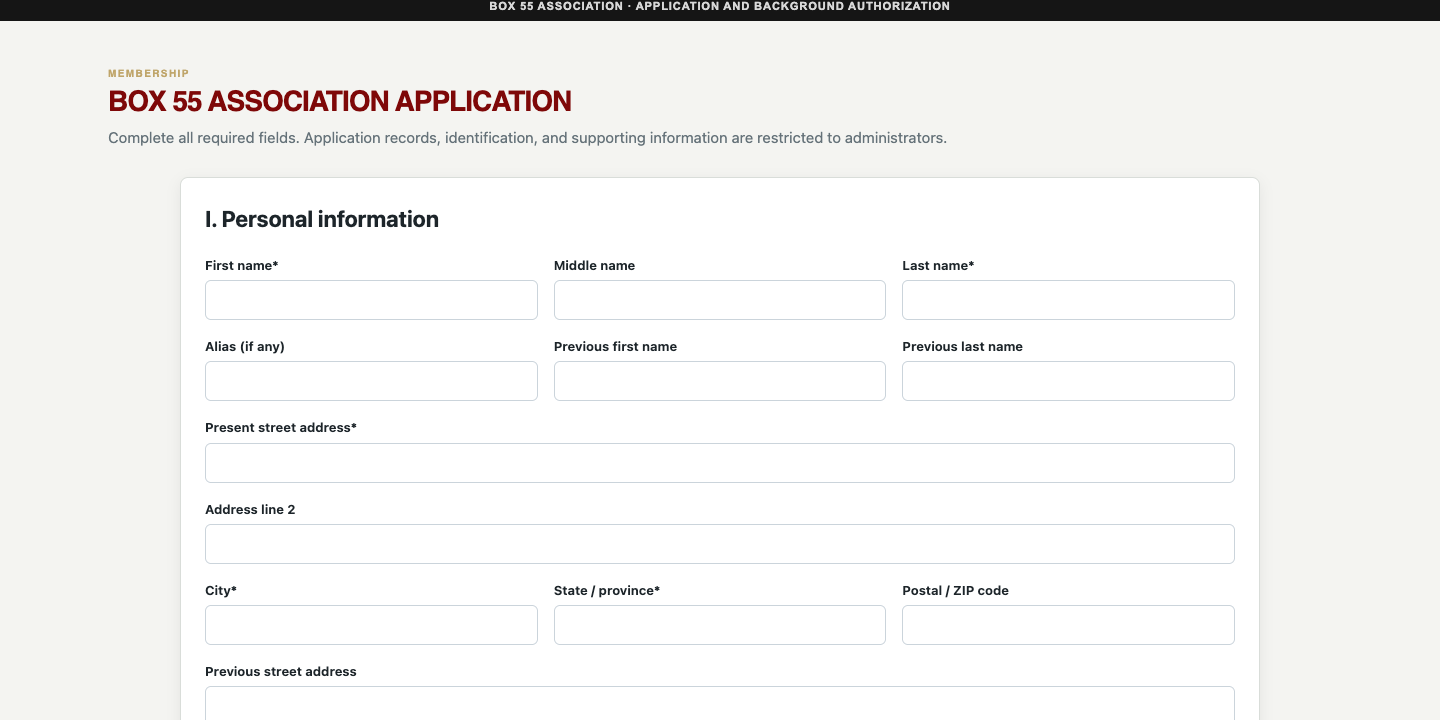
The application gathers personal information in clearly labeled sections. Select image to enlarge.
Complete an application
Open Application → New Application. In Section I, enter required identity and contact information, current address, date of birth, Social Security number, birthplace, sex, civil status, driver-license number, and license state. Include previous names or addresses where applicable.
Upload the required driver’s license or state ID. JPEG, PNG, WebP, or PDF is accepted, with a 10 MB maximum. Use a legible document that belongs to the applicant.
In Section II, complete emergency contact, employer, position, and reason for joining. Enter Retired or Unemployed where appropriate. Answer the social-media question and supply links when applicable.
In Section III, answer the criminal-history question and provide the requested details. Complete the traffic-infractions or motor-vehicle-collision response; do not leave a required explanation empty.
Section IV states a non-refundable $100 application/background fee. Enter the email where the QuickBooks invoice should be sent. This field is an invoice destination, not an in-form card payment.
Read and accept the background authorization, enter the signed date, and sign. Submit and wait for the success response.
Continue to the linked questionnaire. The application-linked identity/contact information is prefilled. Complete and submit the questionnaire separately.
Complete the questionnaire
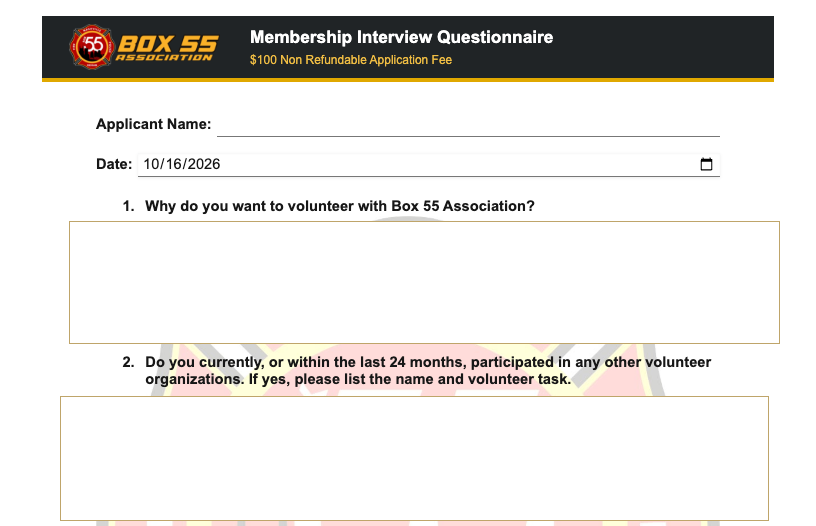
The questionnaire collects free-form responses and can be linked to an application or submitted separately. Select image to enlarge.
A standalone questionnaire is available at https://box55forms.online/application-questionnaire.html. Enter the applicant name, email, and mobile phone. No member account or access-code email is required. A linked questionnaire prefills the application name, contact details, date, interest, current employment, and matching background answers; review and complete each response before signing.
The questionnaire follows the approved six-page layout with its exact 21 questions and response-box sizes. Its shared Box 55 logo header shows $100 Non Refundable Application Fee without a duplicate brand title. Answer fields and continuation pages are opaque white, keeping the watermark outside responses on screen, printouts, PDFs and emailed attachments. Questions cover negative Fire/EMS and Police experiences, 20-year employment history and six-year traffic history. Sign and date the certification with a fresh signature. Long answers share numbered continuation pages, with each question heading kept beside its response and readable page breaks; historical submissions keep their original questions. Page 2 uses only the existing redacted staff alert and sends no new applicant-access emails.
Questionnaire availability is a narrative membership response. It is not automatically copied into Schedule → My Availability. A submitted questionnaire should not be resubmitted just to see its confirmation again.
Review and output records
Authorized administrators/developers use Applications to review applications and questionnaires, including whether a questionnaire is linked or standalone. Open an applicant or attachment to review it. Select record checkboxes for Print selected, Export selected, or Email selected. The output uses the application or questionnaire format, including supported identification and signatures, rather than an incident-run format. Multiple exports are packaged as separate PDFs in one ZIP; emailed selections remain separate PDF attachments.
Protected application viewing and output require the applicable PII permission. Administrators cannot edit/delete these protected records; Developer authorization is required. Use named recipients and secure handling for identity documents and Social Security information.
Chapter 18
Accident and safety reporting
Accident Report records accidents, exposures, equipment failures, and safety concerns. Complete it promptly and follow the organization’s OIC and Safety Officer notification procedure. A form submission does not replace emergency response or immediate assistance.
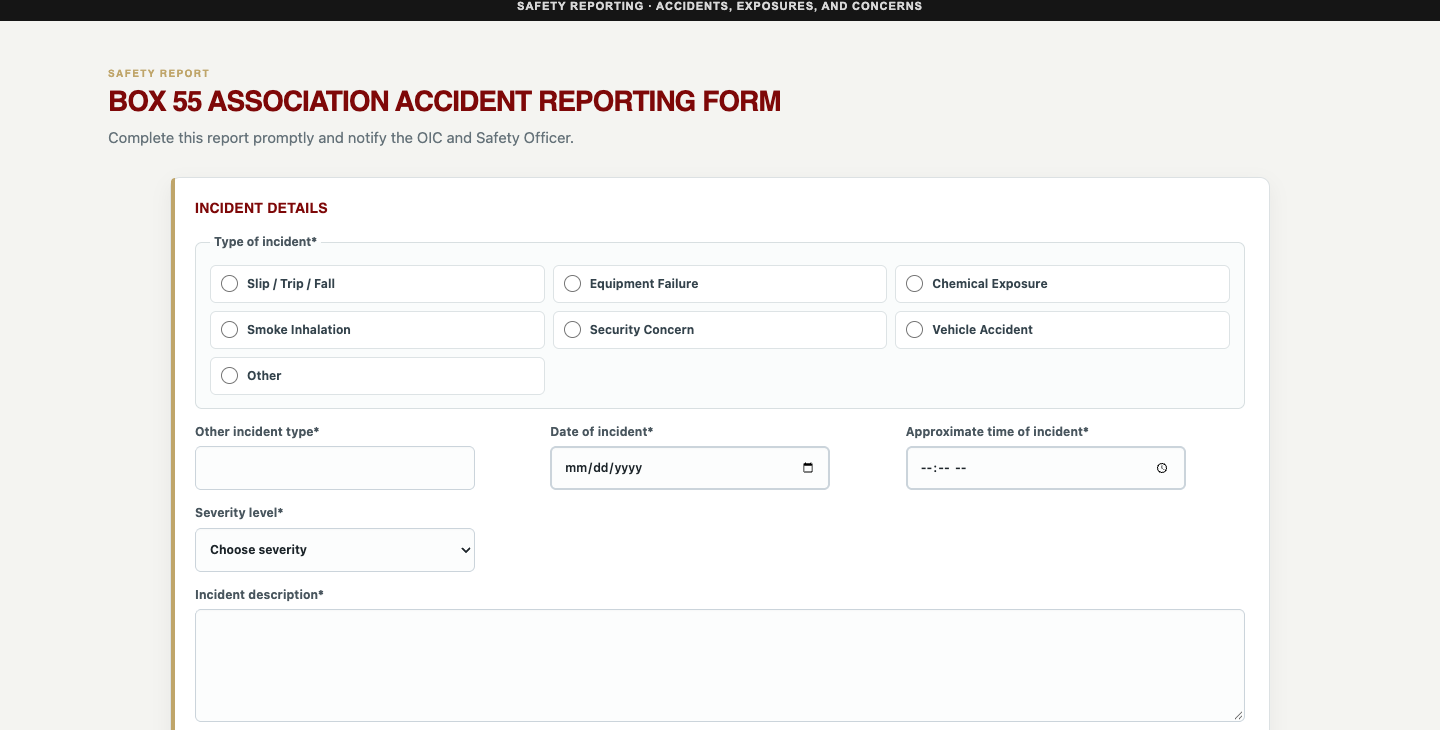
Incident type, date, time, severity, and description define the safety event before the more specific sections. Select image to enlarge.
Open Accident Report → New Report. Choose the incident type: Slip/Trip/Fall, Equipment Failure, Chemical Exposure, Smoke Inhalation, Security Concern, Vehicle Accident, or Other.
Describe Other when selected. Enter Date of incident, Approximate time of incident, Severity, and Incident description.
Complete location information and the involved person and vehicle sections. For a vehicle accident, add relevant other-vehicle and driver details.
For a fall, record the surface, task, footwear, and contributing circumstances. For an exposure, record the substance, exposure, and symptoms as requested.
Record medical attention, treatment source, and whether care was refused accurately. Use the conditional fields that appear for your answers.
Enter reporter identity and contact details, attach supporting photos, sign, and confirm the stated notification to the OIC/Safety Officer only if it has occurred.
Submit to Safety Officer and wait for confirmation. Preserve any additional documentation required by the organization.
Field group
Purpose
Severity Critical High Moderate Low
The reported seriousness of the event; not a replacement for emergency triage.
Personnel and vehicle
Who and what were involved, including vehicle damage and circumstances.
Other vehicle and driver
Make/model/color/tag/state and the other driver’s identifying/contact details where relevant.
Fall or exposure details
Event-specific facts that help subsequent safety review.
Medical attention
Whether assistance was received, the source, and any refusal recorded by the reporter.
Reporter signature and acknowledgment
Who submitted the report and the required notification acknowledgment.
The photo control accepts up to eight JPEG, PNG, or WebP images, up to 4 MB each. Accident Reports history is restricted to authorized Administrators and Developers. Review the saved date/time, type, severity, location, reporter, and attachments. Developer-only deletion is available where shown.
Chapter 19
First Responder Info
First Responder Info provides operational awareness tools, not an authoritative dispatch console. Its submenus are Live Dispatch Board, SmartView Cameras, Weather Radar, and Aviation Activity. External data may be delayed, unavailable, or restricted by the provider.
Live Dispatch Board
Open First Responder Info → Live Dispatch Board.
Use the Fire, Police, and Traffic tabs to select the information you want. Check the feed timestamp and use Refresh now when available.
Use an address or location action to open the offered location/map view. Review the dispatch details and responding units rather than inferring an assignment from a map marker.
Select an apparatus/unit item where offered to view its photo gallery. A signed-in user can use the apparatus-photo upload control; provide a relevant image within its limit.
Use Online Radio links for the offered feeds. Start audio explicitly if the browser requires user interaction and adjust volume appropriately.
The interface offers radio links such as THP/TDOT HELP District 3, Rutherford Fire/EMS, and La Vergne Fire, and a Davidson County ZIP reference map. Feed availability and audio playback depend on the provider and browser. An absent unit image is not proof that a unit does not exist.
Traffic weather and aviation
Area
Available options and intended use
SmartView Cameras
Open traffic camera or traffic-map views to inspect route conditions. Provider pages may open separately or limit embedding.
Weather Radar
Use the weather and radar views for situational awareness, including location/ZIP controls where offered. Check the displayed time before relying on an image.
Aviation Activity
Open offered airport/tracking links such as BNA FlightAware, ADS-B Exchange, or Flightradar24 for aviation activity context. These are external information services.
If an embedded provider page is blank, use its offered external link and check internet connectivity. These tools do not authorize a response, guarantee live coverage, or replace assigned radio communications.
Chapter 20
Member administration and notifications
Main Administration manages the shared member directory and user access. Schedule, driver selectors, contact reports, and recipient selection draw from this directory. Correct the member here rather than creating a second scheduling identity.
The directory is the shared source for member identity, role, membership category, status, and notification settings. Select image to enlarge.
Add or edit a member
Sign in as an authorized Administrator or Developer and open Administration. Choose Add member or Edit for an existing member.
Enter the person’s first and last names, access role, contact information, address, membership category, membership status, joining date, and other directory details.
Set the access role intentionally. A member-only record and an account with Driver, Editor, Administrator, or Developer access are different arrangements. Driver permissions remain off by default.
Complete the emergency contact fields and available profile/photo controls when appropriate.
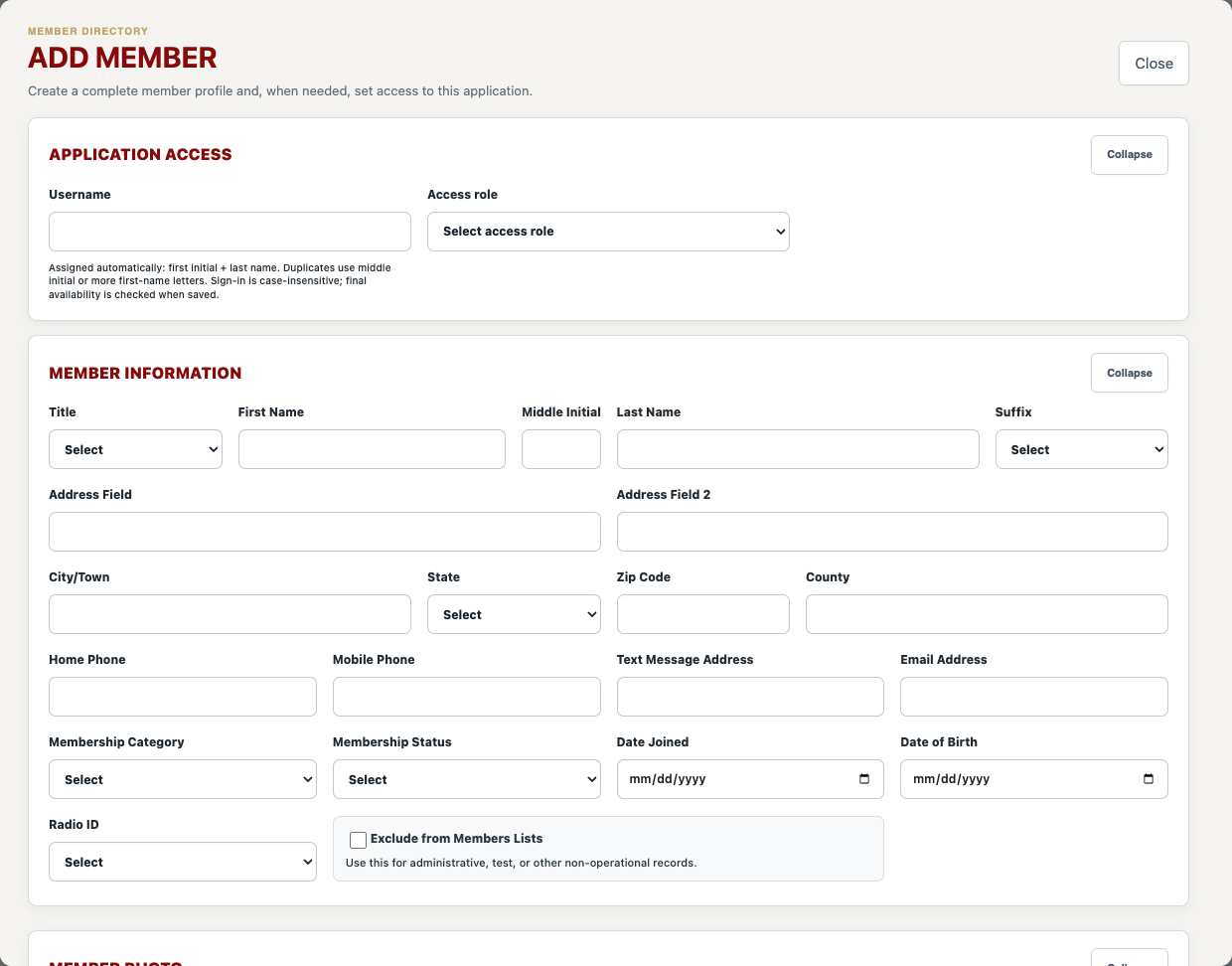
Set Exclude from member/run lists when the account should not appear in operational member lists, such as an administrative or nonoperational account. Review category and status before using the record for scheduling.
Review notification preferences, save the member, and confirm the resulting directory entry. Use the password-setup invitation workflow for accounts that need initial access.
New members automatically receive a username from first initial plus last name. A duplicate uses the middle initial, then more first-name letters, with a number only if needed. The editor previews it; the server confirms uniqueness when saved. Usernames are stored lowercase and sign-in accepts either case. Existing custom usernames and usernames on edited profiles remain unchanged. Basic members also have usernames, but no login access is granted without an Access Role and its permissions.
The member editor separates application access from membership and contact information. Select image to enlarge.
Schedule drivers are members categorized Driver, Officer, or Driver/Chaplain, excluding those flagged not to appear in lists and those marked Suspended or Terminated. Lists and demo-driver rotation sort by last name, then first name, ascending. Other membership statuses are not automatically equivalent to these two inactive exclusions; verify the actual eligibility when using a local status label.
Access and notification controls
Email and text notification preferences control the offered new-run, shift-inspection, pre-trip, waiver, and membership event alerts. Configure only addresses the member has authorized.
A text-message address is the configured delivery address for supported text notifications; entering a mobile number alone is not proof that text delivery is configured.
Send invitation emails a one-time password to the member profile email. First-time passwords cannot be assigned manually. Assign password appears only for an account with a previously established password, and only authorized Administrators or Developers can use it. A new access account or a basic member given access automatically receives an invitation; resend one from the directory if needed. Password reset invitations sign out existing sessions and replace older invitations. Verify the profile email before sending.
Administrators cannot manage Developer accounts as though they were ordinary Editor accounts. Developer-only actions require Developer authorization.
Delete removes a member/account when permitted. Do not use deletion as a routine substitute for marking membership inactive or excluding a record.
Audit and change history
Availability audit entries record added, changed, and deleted ranges, including previous/new start and end dates and times. Both My Availability saves and officer/demo-driver edits are covered. The audit actor is the signed-in account; each item identifies the affected driver. Select View itemized changes to inspect the ranges. Filtered printed, PDF, and emailed audit outputs include these details automatically. Older saved-only events do not contain enough information to reconstruct their changes.
The member directory and Audit Log have independent Collapse/Expand controls. Their long tables scroll within bounded regions. Back to top returns to the section and the beginning of its list. Individual member-editor field groups also collapse independently; a missing required field is revealed when validation needs it.
Use the Audit Log date, user, and event filters to review saved actions. Print, Export / Save PDF, and Email audit log include the focused entries with recorded details expanded. The following chapter explains recipients, changes, and sign-in interpretation. The audit log is history, not a backup or an undo mechanism.
Chapter 21
Audit Log filters details and output
Open main Administration and locate Audit Log. Access requires the appropriate protected audit permission. Each entry records a timestamp, actor, event type, and saved summary or detail. The log can explain a change or notification attempt, but it does not itself prove inbox delivery or restore a deleted record.
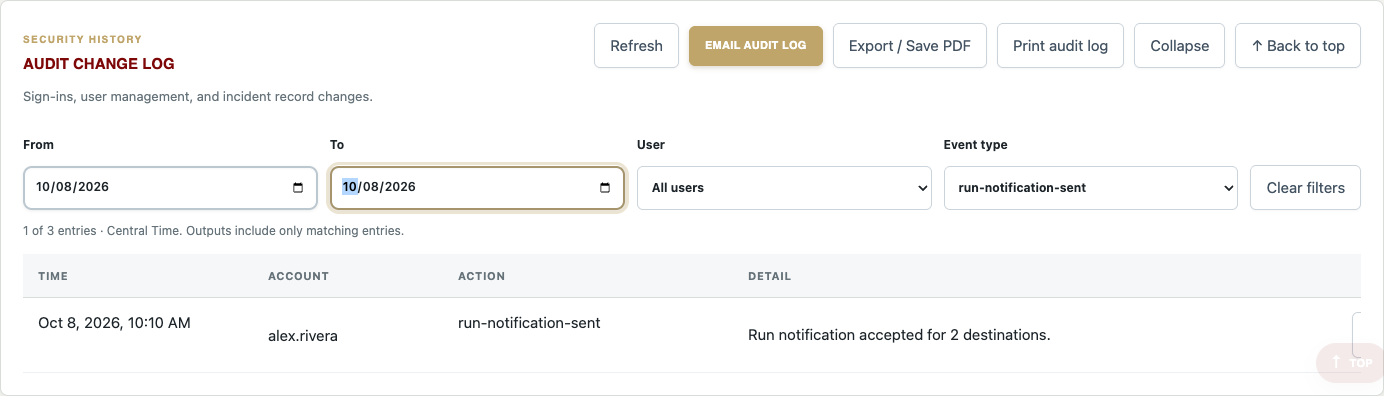
Audit Log combines date range, user, and event-type filters with focused output actions. Select image to enlarge.
Filter the log
Select From and To for a date range, or leave either boundary empty. Dates are interpreted in America/Chicago Central Time, and both selected boundary dates are included.
Choose a User, an Event type, or both. All selected filters apply together; for example, one user’s run-notification-sent events during the selected week.
Read the matching-entry count. A reversed date range is invalid and disables output actions until corrected.
Use Refresh to reload the available history while retaining the current filters. Clear filters removes the selections without deleting history.
Scroll within the log for additional matching rows. Use Back to top to return to the section and the start of the contained list. Collapse and Expand affect visibility only.
View itemized changes and recipients
Select View Itemized Changes where a structured change record provides it. The popup shows each recorded field’s previous and new values. Other events may contain only a text summary; not every historical event has a field-level comparison.
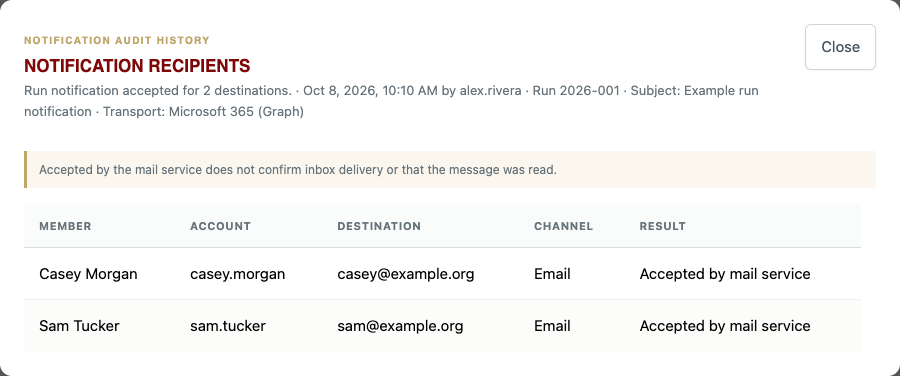
A notification recipient popup shows the saved destinations, channels, and send results without exposing live member data in this example. Select image to enlarge.
For run-notification-sent, run-notification-not-sent, or run-notification-failed, select View Recipients. Review the recorded member/account, destination address, Email or Text gateway channel, and result. The popup also includes available run, subject, transport, and failure context. Accepted by mail service means the sending service accepted the message; it does not confirm delivery, receipt, or reading.
Recorded result or detail
How to interpret it
Accepted by mail service
The sending service accepted this destination. Inbox delivery and reading are not confirmed.
Send failed
The attempt failed; inspect the recorded error and coordinate any resend.
Not attempted
That destination was not attempted, for example after an earlier send failure.
Older notification with only a count
The recipient list was not recorded for that event. The application does not substitute today’s directory for missing historical evidence.
Member or other structured change
View Itemized Changes when available. Output expands recorded field differences and additional saved context.
Returned sign-in
An existing session resumed after the activity threshold; it is not necessarily a new password login.
Print export or email the focused history
Set the filters and verify the count before selecting Print, Export / Save PDF, or Email audit log.
Review the output’s filter description and Central Time labeling. It includes all matching entries, not only rows visible within the scrolled list.
Recorded recipients, itemized changes, and other available context are expanded in output because a printed or emailed document cannot open the on-screen popup.
For email, check recipients, CC, subject, and optional message in the common composer. Filters are captured when the composer opens; close and reopen it if you need a different selection.
Handle the file or email as protected information. Recipients and member changes may expose personal contact information.
Recipient-rich logs can span several pages. Inspect the complete print/PDF preview, including the last entry and recipient table. Missing historical detail cannot be recovered by exporting. Sign-out, session expiration, and normal operational activity should be interpreted using the exact recorded event and context, rather than assuming all sign-in entries are password submissions.
Chapter 22
Membership reports and contact exports
Main Administration → Reports provides membership recognition and contact reports. Access is protected because the content includes personal and emergency-contact information.
Report or action
Definition
Birthday report
Groups members by birthday month and day for recognition. Missing dates cannot appear in the correct group.
Anniversary report
Groups members by joining month/day and shows years of service and milestone recognition.
Member contact roster
Shows primary contact details, membership information, radio ID, and limited emergency-contact details. Records excluded from lists are omitted from this roster.
Print orientation
Choose Landscape or Portrait for the contact roster output before printing or exporting.
Export contact cards
Download supported vCard/VCF contacts for importing into a contact application.
Individual contact card
Review an individual’s available contact/emergency information and use offered phone, email, or contact-file actions.
Use and maintain the reports
Birthday Report, Anniversary Report, and Member Contact Roster each have independent Collapse/Expand controls. Returning to the Reports tab preserves their fold state during the current page session. The contact roster uses the same contained scrolling treatment as Audit Log and provides Back to top. Outputs include the selected report even when its screen section is collapsed.
Member Contact Roster combines a name search with Membership Category and reports the matching count. Select image to enlarge.
Open the required report and check that the underlying member dates and contact information are current.
For the contact roster, type a first or last name, or part of one. Search is case-insensitive; a full name can be entered as Rick Loyd or Loyd, Rick.
Select Membership Category if needed. Name search and category apply together. Read Showing N of M members; Clear filters restores all eligible roster members.
Choose the roster print orientation and inspect the page layout. Print, PDF, Email, and Export contact cards use the matching roster, not just the cards currently visible in the scroll region.
Select the report action and review recipients before sending. Roster email captures the selection when its composer opens; reopen it after changing filters if you need a different selection.
For contact-card export, import the downloaded VCF into your chosen contact app and review duplicate handling.
Roster filters do not filter Birthday or Anniversary Report. The category list comes from eligible roster records, including custom categories. Excluded records remain hidden and cannot be brought back by a name search. A no-match result is not a deleted member; clear or correct the filters first.
Contact exports are snapshots; later member edits do not automatically update previously imported contacts. Exclusion behavior is specific to a list: the contact roster explicitly omits excluded records, while birthday/anniversary grouping and contact exports should be checked separately rather than assumed to hide every account.
If a member is missing or appears under the wrong month, correct the shared directory’s date fields and refresh the report. Do not alter a report PDF as a substitute for fixing its source data.
Chapter 23
Administrative options permissions and integrations
The main Administration submenus are separate from Schedule Administration. Controls vary by role, and changes can affect all users. Review the scope before saving.
Administration submenu
Purpose and use
Run Entry Options
Add/remove offered activity, agency, equipment, and related entry choices. Use concise consistent values so new records group predictably.
Inspection Finding Options
Maintain finding categories and their choices. Add a category or choice, or remove an obsolete item. Coordinate naming with Logistics reporting.
Pre Trip Notifications
Configure the optional I Am Responding email destination and enable/disable forwarding.
Microsoft 365 Sync
Developer-only integration status and read-only mapping/preview work. This release does not provide an active automatic directory-write synchronization workflow.
Role Permissions
Review the resource/role matrix. Developer can change supported permission entries; Administrator viewing does not authorize editing.
Incident Data
Developer CSV export/import and destructive replace/purge tools, covered next.
Member Data
Developer CSV export/import and destructive replace/purge tools, covered next.
Permission definitions
View permits reading; Edit permits supported changes; Delete permits supported removal. The matrix includes Driver, Editor, and Administrator rows for 11 resources: Incident Runs, Shift Changes, Reports, Members, Run Options, Audit Log, Waivers, Applications, Personal Information, Schedule, and My Availability. Some resources do not expose all three actions; endpoint-specific restrictions still apply.
The Driver role appears in Role Permissions with permissions disabled in this edition. Select image to enlarge.
All Driver permissions begin unchecked. Creating a Driver login or changing a member’s access role to Driver does not enable availability, protected reports, schedule exports, or email. No existing members were automatically reassigned to the new role. Public Schedule and Print Calendar remain available regardless of sign-in.
Driver is an access role distinct from the Driver membership category. Future availability use requires explicit My Availability permissions: View for access, Edit for submissions and corrections, and Delete for removal, together with driver-directory eligibility and an unlocked input period. Enabling Schedule view can authorize supported protected schedule actions, but it does not grant Officer Workspace or schedule Administration. This edition does not recommend enabling any Driver permissions; the defaults remain off pending a separately approved rollout.
Developer authority is the highest level. Editor PII access is not allowed. Protected application/waiver editing and deletion remain Developer-only even when an Administrator can view a record. An unauthorized user must not work around a hidden control through a direct URL.
Keep choices and integrations consistent
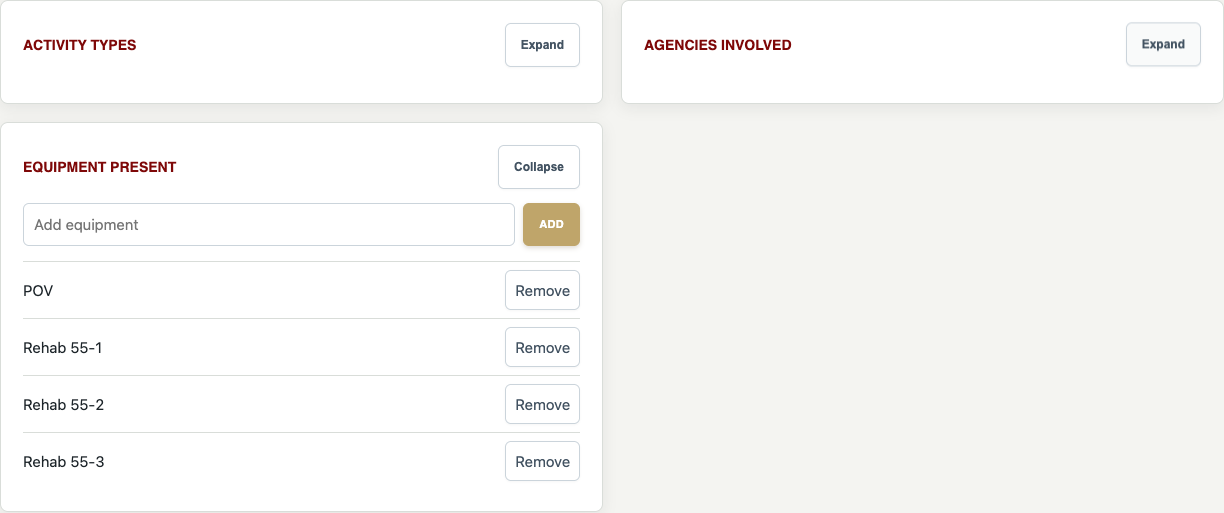
Activity Types, Agencies Involved, and Equipment Present have independent Collapse/Expand controls. Select image to enlarge.
In Run Entry Options, collapse or expand Activity Types, Agencies Involved, and Equipment Present independently. Inspection Finding Options applies the same control to every finding category, including newly added categories. Add and Remove keep their normal meaning; Collapse does not remove a choice or category, reset an input, or change historical data.
Before removing an entry option, consider how existing records and reports use its saved text. Removing a choice from new-entry menus is not a cleanup of all historical records. Prefer a deliberate migration plan for renamed categories.
Microsoft 365 mapping protects local membership/access fields. Configured credentials or a successful preview do not mean full synchronization is enabled. Integration, mail, and backup setup are maintenance tasks.
Chapter 24
Data export import backup and destructive tools
These tools are for an authorized Developer, not routine reporting. Exporting a CSV is useful, but it is not a complete backup of the database, uploaded attachments, configuration, or all application state. Arrange a verified full backup before replace, purge, or a large import.
Incident Data
Open Administration → Incident Data. Download the CSV export or the provided template.
Keep the exact template headers and accepted values. The import file has a 10 MB limit. Review dates, times, run identifiers, member names, and multi-value fields before import.
Use Merge when you intend to update matched existing identifiers/run numbers and add new records.
Use Replace all only when you intend to replace the entire incident data set and have a verified recovery copy. The confirmation word is REPLACE.
The purge action requires PURGE INCIDENT RUN DATA and resets incident data and its numbering sequence. It is not equivalent to clearing a search filter.
Member Data
Open Administration → Member Data and export or download its template. Exported temporary_password values are blank; real passwords are never a reusable CSV export.
Review usernames, contact information, profile fields, category, status, role, and exclusions. Leave temporary_password blank for new accounts and provide a profile email for access accounts. Imports never send invitations automatically; use Send invitation afterward. Only existing accounts with an established password may have a password assigned through the legacy temporary_password column.
Use Merge to update matching usernames and add new members. Avoid changing a person’s identity just to correct their display name.
Replace requires REPLACE MEMBERS and must preserve the signed-in Developer account.
Purge requires PURGE MEMBER DATA and retains the signed-in Developer. Verify the intended scope and recovery plan before proceeding.
Backup and restore practice
A CSV download is a data-transfer artifact. A full project/database backup needs the deployed database, attachments, settings, and appropriate application/configuration files, with secrets handled securely. The application does not give an ordinary user a complete NAS backup/restore dashboard.
Before a destructive maintenance action, have the responsible maintainer verify backup freshness, destination, and recoverability. This manual does not assert a last backup date or NAS count; those depend on the current backup system and must be checked at the time of use. Restoration is a maintenance operation, not a button on an incident form.
Never purge to solve a report mismatch. Correct the source entries or reporting rules first. Treat all exports containing member contact or application details as protected files.
Chapter 25
Apple app status and connectivity
The repository includes Box 55 Field Operations, a shared SwiftUI starting point for Mac, iPhone, and iPad. Its local foundation version is 0.1.1, separate from the website’s date/build release. It is not yet a published or distributed replacement for the website.
What the foundation contains
An HTTPS API client for sign-in, session validation, and incident-run retrieval.
An incident-entry starting point and network-aware encrypted operation queue.
A queue encryption key stored in Apple Keychain, with queued content encrypted in Application Support.
Push-notification registration scaffolding deliberately disabled until Apple and server prerequisites are completed.
What remains before operational distribution
The current web API uses browser session cookies. Production native distribution still requires a dedicated mobile authentication/API flow, rotated tokens, per-user authorization, device registration, idempotent queued writes, and explicit conflict/version handling. Queued operations must be acknowledged by the server, and a newer record must not be silently overwritten.
The existence of source code, a local build, or a pending queue does not prove the complete operational workflow is production-ready. Do not assume Schedule, membership records, or every website form is implemented in the native app. Push notifications are not currently an available user feature.
Website connectivity
Use the website online for operational work. If connectivity is lost, keep your information available securely, reconnect, and verify whether the record saved before retrying. A browser shortcut does not provide the native app’s queue. Avoid claiming that an unsent form has been received by an officer.
For local native-app setup, an authorized maintainer opens the Apple package in Xcode, chooses a permanent team/bundle identifier, and completes the documented server/distribution prerequisites. End users should receive approved installation instructions only after that release is ready.
Chapter 26
Troubleshooting and quick definitions
Symptom
Check and next step
A tab or action is missing
Confirm the signed-in role, directory eligibility, and configured permissions. Officer membership category alone is not Officer Workspace access.
A mobile submenu runs beyond the screen
Swipe directly on the second menu line to reveal later options. Rotate without reloading; the page should resize. Refresh once if the footer is older than release 148.
A Driver login has no availability or export actions
Driver permissions start off. Assigning that role alone does not authorize private actions. Ask the Developer about the approved access rollout.
A signed-in account expires after 72 hours
Editor and Driver sessions use 72 hours from sign-in, not from last activity. Sign in again. Administrator and Developer sessions have no application expiration but can still be revoked or lose their browser cookie.
A sign-in event appears without a password entry
Read its detail. Returning after at least 30 minutes with a valid session records an existing-session sign-in, not a new password login.
A filtered roster or audit export is missing entries
Review active filters and the matching count. Outputs include the focused selection, not the unfiltered directory or history. Collapse and scrolling do not limit output.
Older notification recipients are unavailable
Older count-only audit events did not store destinations. Current membership settings cannot prove who received an old message.
My Availability cannot be changed
Check Availability input locked. Ask an officer to allow input or make an approved officer correction.
The wrong driver is being edited
Read the demo-focus banner. Exit demo preview or cycle to the intended driver before saving.
A cross-month range is rejected
Check actual start/end dates and times and complete any over-seven-day confirmation. Do not change the month just to conceal an invalid range.
A note did not affect generation
Check supported interpretation, officer approval, and whether the note changed afterward. Unapproved or unmatched text is not applied.
A published assignment did not change
A draft edit is not publication. An authorized officer must review and republish the corrected month.
Mileage totals seem wrong
Use completed-shift reports; review inferred boundaries and odometers. Do not add overlapping full-shift monthly totals without deduplication.
Print or PDF loses colors or cuts content
Review landscape, scaling, paper size, browser headers/footers, and background graphics. Ensure the vehicle legend and every week row remain visible.
Only one download appears for several applications
Multiple selected exports are a ZIP. Open it to find the separate timestamped PDFs.
Email did not arrive
Check recipients, confirmation, spam/quarantine, and configured mail service. Do not send repeatedly without checking the first attempt.
Form boxes look stale or misaligned
Check the footer release, refresh the site, and compare a current browser. Report the page, device/orientation, release, and a screenshot with private data removed.
External radar radio or camera is blank
Check network/provider availability and use an offered external link. Some providers prevent embedding.
Quick definitions
Term
Definition
Access role
Software authority such as Driver, Editor, Administrator, or Developer. The new Driver role has permissions off by default.
Membership category
Organizational category such as Driver, Officer, or Driver/Chaplain.
Availability
A submitted interval in which the driver can be assigned; not an assignment guarantee.
Draft
Editable schedule work that is not yet public.
Published schedule
The approved snapshot exposed by the public Schedule page.
Hard approved constraint
An approved exclusion or shift cap that can prevent assignment and leave a gap.
Soft preference
A ranking preference that may yield to available coverage.
Decision review
The explanation generated with a draft; not an explanation of later manual edits.
Completed shift
A same-vehicle interval reconstructed between usable inspection boundaries.
Inferred boundary
A fallback shift start or end used because the expected report is missing.
PII
Personally identifying information requiring protected access and careful handling.
PDF CSV ICS VCF
Formatted document, tabular data, calendar file, and contact-card file respectively.
When asking for support
Provide the page name, action, selected reporting dates/month, device/browser, signed-in role, footer release, and exact error. Include a cropped screenshot where useful. Do not include passwords, reset codes, Social Security numbers, private ID images, or unnecessary member details.
For safety events or urgent coverage gaps, use the organization’s established operational contact process in addition to reporting a software issue.
Reference and maintenance notes
Website entry points
Main application https://box55forms.online • Schedule /rehab-schedule/ • Shift Change /shift-change.html • Pre Trip /pretrip.html • Ride Along Waiver /waiver.html • Application /application.html • Questionnaire /application-questionnaire.html • Accident /accident.html • First Responder Info /live-dispatch.html • Account Assistance /account.html.
Verification basis
Revised October 16, 2026 against release 2026.10.16-160. Primary references: outputs/server.py; outputs/app.js, audit-log.js, main-menu.js, member-reports.js and styles.css; outputs/shift-change.js; outputs/rehab-schedule/app.js and scheduler-assist.js; the application, waiver, pre-trip, accident, account and responder-information pages/scripts; and apple/Box55FieldOps/README.md. This edition incorporates the questionnaire replacement and branding, $100 fee, opaque answer fields, contextual Help, account invitations, generated usernames, member filters, expanded availability audits, and the earlier reporting and Schedule updates. Azure and Pi use the same application code while retaining independent databases.
Screenshot method
Screenshots use the published interface with locally intercepted fictional data. All non-GET requests and all production API data calls were blocked. No live form, schedule, member, email, or attachment was created for this manual. User-supplied project screenshots informed the coverage of date controls, calendar output, headers, and scheduling workflows.
Maintenance note
Update this handbook when page controls, permissions, report definitions, or scheduling rules change. Recheck screenshot captions and the cover release before distributing a revised edition. Configuration-specific values should always be verified on the actual site.